 TridentSense
Documentation
Every feature, step by step, and what you should see, hear or feel when it is working. Click any picture to enlarge it.
Getting started
1. Start TridentSense
- Start TridentSense. There is nothing to choose first: every PC plays its own games, and can also lend controllers and join other PCs (see Ways to play).
- TridentSense relies on two drivers: one provides the virtual controllers games see, and one hides the real controllers so games do not see each controller twice. If either is missing, TridentSense offers to set it up. Its own Windows service does the jobs that need an administrator, so TridentSense itself runs as you. Their state is always shown under System > OS.
2. Connect a controller
- Bluetooth: pair it under System > Bluetooth (see Bluetooth), or with Windows' Bluetooth settings as usual. On a DualSense, hold Create + PS until the light bar flashes.
- USB: plug it in.
- A tab for the controller appears in TridentSense within a few seconds.
Finding your way around
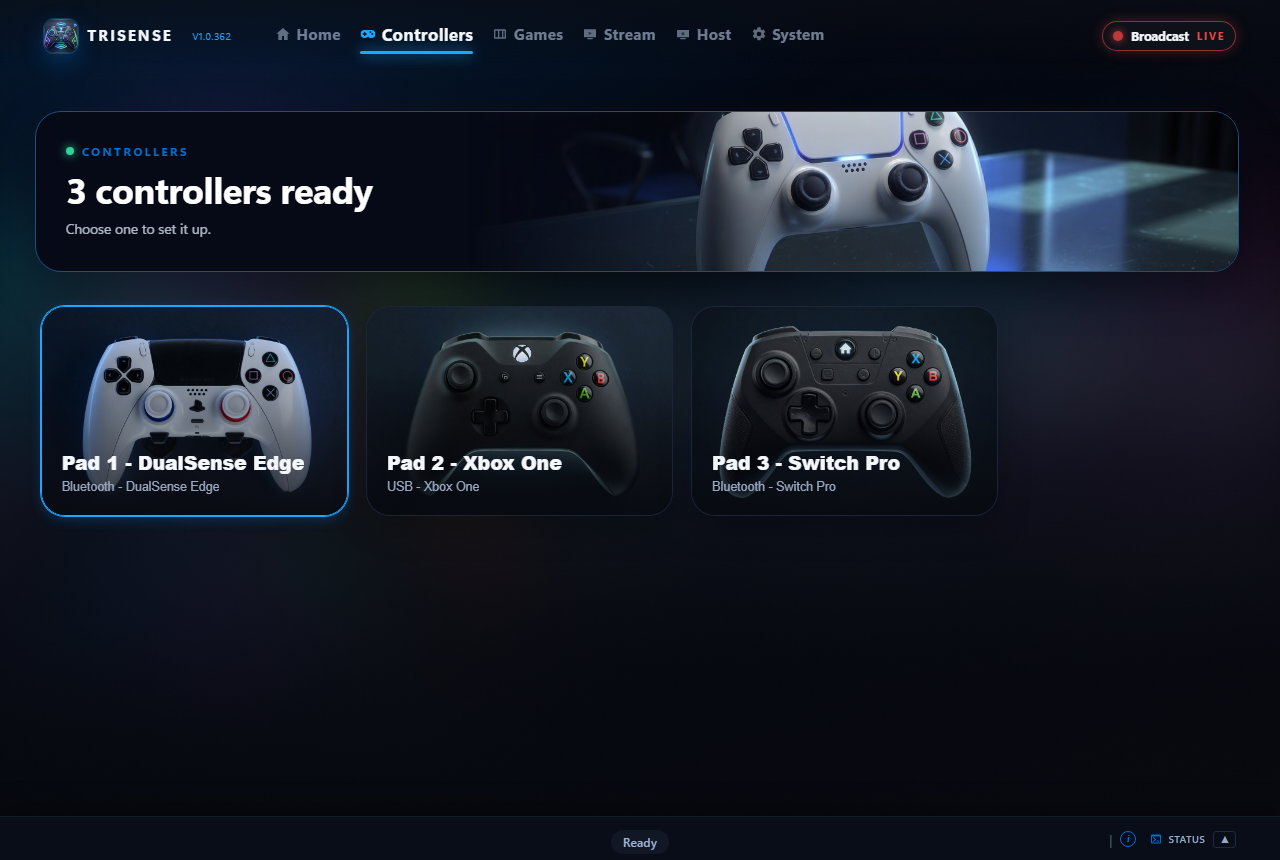
- Top bar: Home (your controllers, the PCs you joined lately and the games you played lately), Controllers, Games (your game libraries and their settings), Stream (joining another PC), Host (letting others join this one) and System (settings for TridentSense itself). Broadcast, at the right, says whether this PC can be joined.
- Controllers: one tile for each connected controller. Choose one and its sections are shown; everything in them belongs to that controller only.
- Sections: each view is a grid of sections; choose one to open its page, and Back (or the trail beside it) takes you out again. A controller only shows the sections it can use: an Xbox controller has no Lighting section, for example.
- Tabs inside a section: larger sections are split, for example Audio into Speaker, Headphones, PC audio and Microphone.
- With a controller: the whole window is driven by the controller (see Using TridentSense with a controller), and PS + Circle brings it down over a game.
- The i buttons: hover or click for a fuller explanation of that setting.
- Status bar: at the bottom; open it to read the activity log.
Changes are saved as you make them and are applied to the controller at once. There is no Save button.
Ways to play
Every PC does all of these at once; there is no mode to pick.
| To | Do | Result |
|---|---|---|
| Play here | Nothing: connect a controller. | Games on this PC see a wired controller with every feature. |
| Lend a controller | Set a PIN under Host > Sessions, then mark the controller Shareable at the top of its page. | A PC that knows the PIN can take it. See Lending a controller. |
| Join another PC | Stream > Chair or Couch, then choose the PC. | Its game streams to you, and your controllers go to it. See Joining another PC. |
| Let others join this PC | Switch on Broadcast and set a PIN. | Other PCs, phones and TVs can take a seat. See Hosting. |
Identity and Appear as
The Identity section says what the controller is and how it is doing, and decides what games see it as.
| Field | Meaning |
|---|---|
| Controller, Connection | The real controller and whether it is on Bluetooth or USB. |
| Battery, Signal | Charge level, and the quality of the wireless link. |
| Reporting | How often the controller reports and whether any reports were lost. |
| Audio | What this controller can do for sound on the connection it is on now. |
| Ready for games | Yes once games on this PC can use it. |
Change what games see
- Open Identity.
- Under Appear as, choose a controller type: DualSense, DualSense Edge, DualShock 4, Xbox 360, Xbox One, Xbox Elite, Xbox Series (experimental) or Switch Pro.
- The controller reconnects to games as the new type. This takes a few seconds.
Player lights
- On Lighting, under Player lights, choose Off, 1 to 4, or All, and a brightness.
- Turn on Player lights override to stop games changing it, and Restore player lights to have it put back after a reconnect.
Joy-Cons as one controller
- Connect both Joy-Cons. Each gets a tile under Controllers.
- Open the left Joy-Con and switch on Merge in the band at the top of its page.
Raw mode
For a DualSense or DualSense Edge on a USB cable that appears as itself. In Raw mode TridentSense stops changing what the game sends the controller, so it behaves as it does plugged straight into the PC, while the rest of TridentSense keeps working.
- Connect the DualSense by USB and leave Appear as on DualSense (or DualSense Edge).
- On Identity, switch on Raw mode. The switch is only shown when it can apply.
| Sent exactly as the game sends it | Still handled by TridentSense |
|---|---|
| Rumble, HD haptics, adaptive trigger effects, light bar and player lights, the controller speaker | Remapping, chords, deadzones and curves, touchpad and gyro, headphones and microphone, profiles, the idle timer |
Tests
Use Tests to check a controller, or to find out what a button is called.
- Open Tests. The picture is your controller; Live shows it is being read.
- Press buttons, move the sticks, pull the triggers, touch the touchpad. Each lights up on the picture; the readouts under it show stick, gyro and accelerometer values.
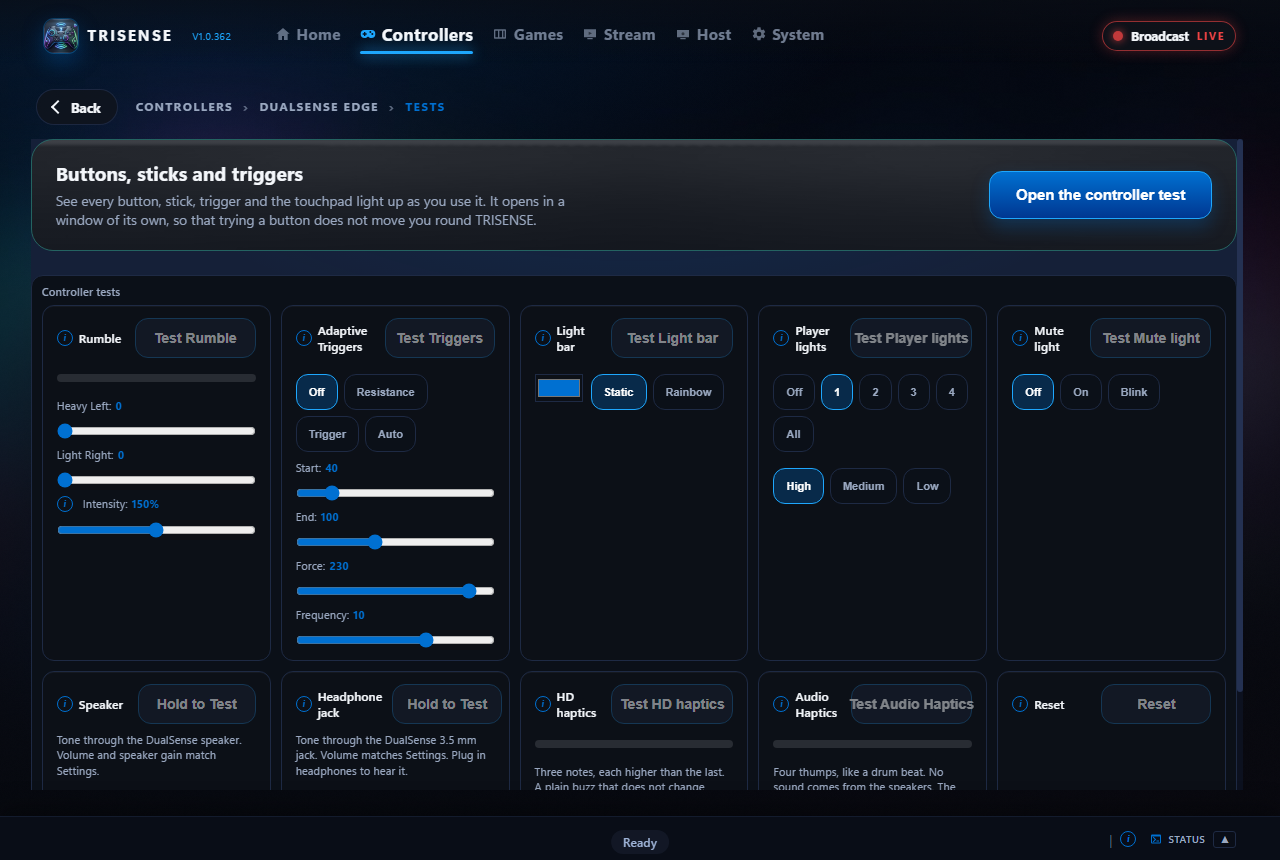
- Under Controller tests, try each feature: Test Rumble with the two sliders, Test Triggers with an effect, Test Light bar with a colour, and the speaker test.
Playground
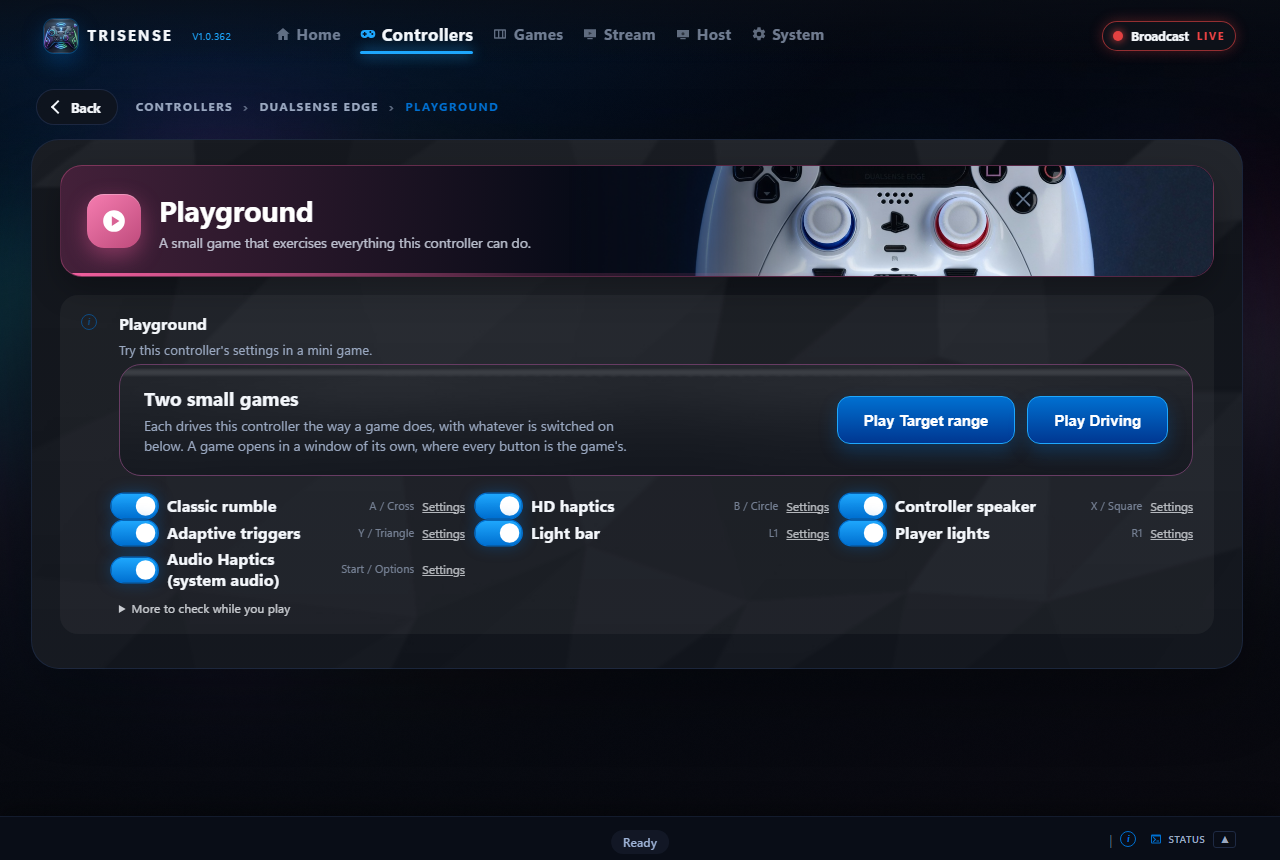
A small game that uses the controller the way a real game does, so you can feel your settings without starting one.
- Open Playground and press any button on this controller so the game can find it.
- Choose Target range (left stick moves, right stick fine-aims, R2 fires) or Driving (left stick steers, R2 throttle, L2 brake).
- Switch individual features on or off in the list to feel each one by itself.
Audio
TridentSense carries controller sound itself rather than leaving it to Windows. That is what makes the speaker, headphone jack and microphone work over Bluetooth, and what gives you the controls below.
Speaker
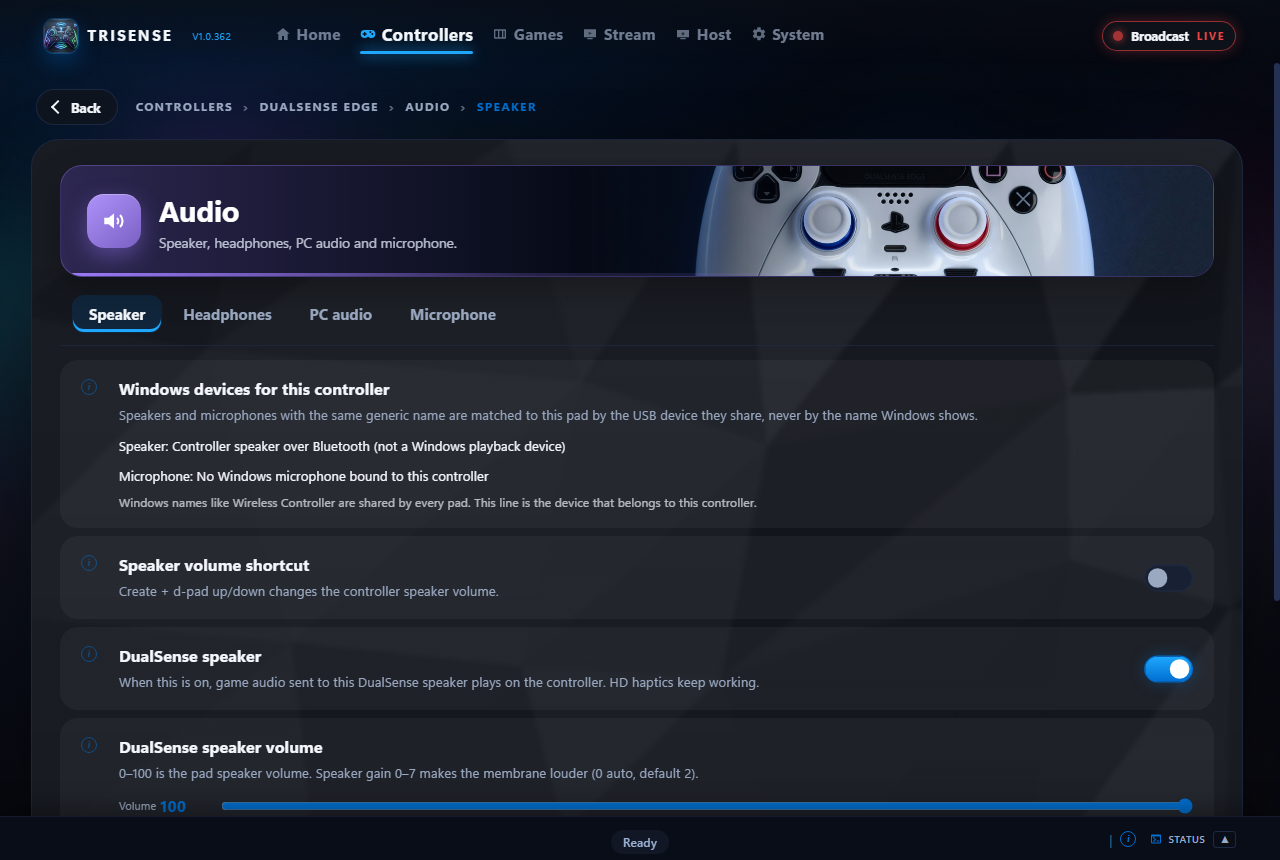
- Open Audio > Speaker.
- Switch the speaker on to hear game audio from the controller.
- Set Volume. Gain is a boost on top of full volume: it unlocks when Volume is at 100.
- Optional: Speaker volume shortcut lets Create + d-pad up or down change the volume from the controller. Lock volume stops games changing it.
Headphones
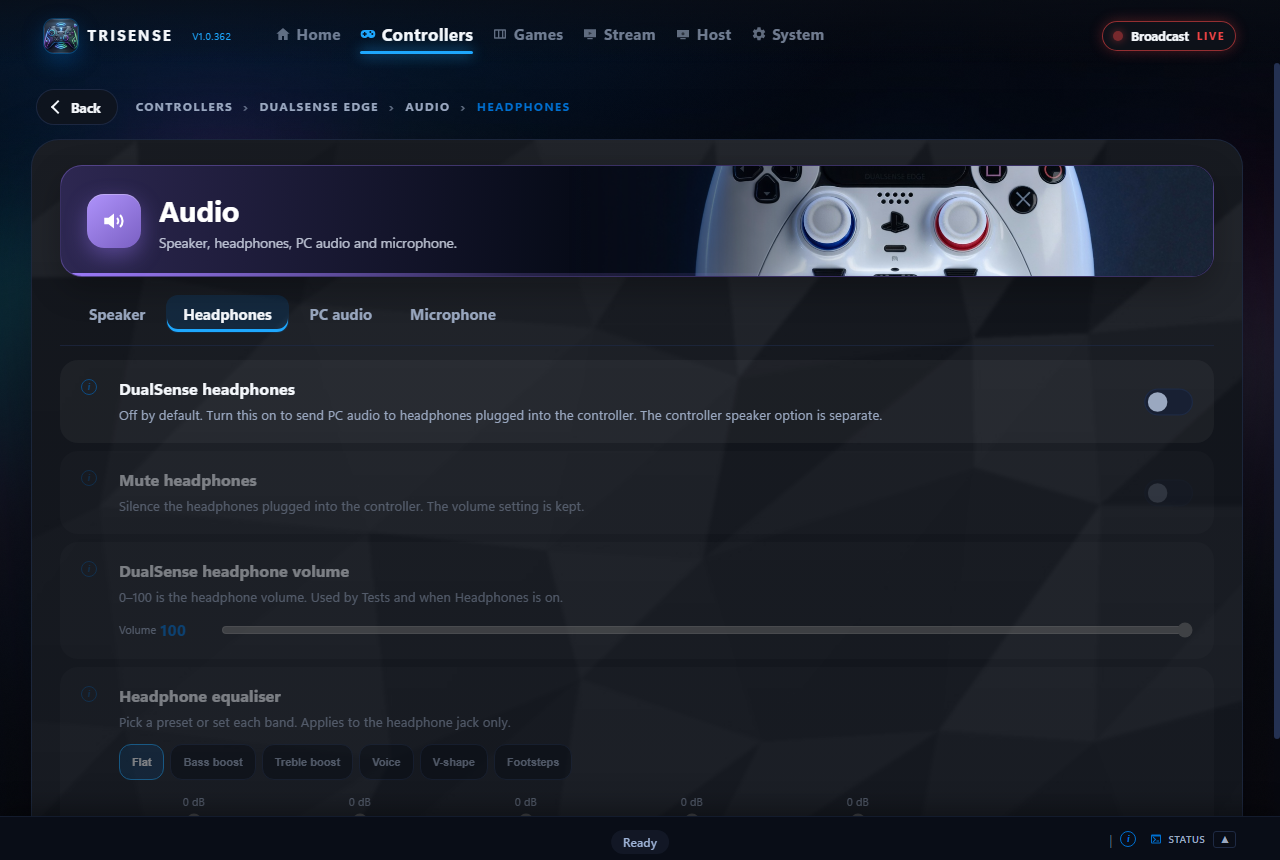
- Plug a headset into the controller's jack and open Audio > Headphones.
- Set the volume, mute, and choose a Headphone equaliser preset or shape your own.
PC audio
- Open Audio > PC audio and switch on Play PC audio on this controller.
Microphone
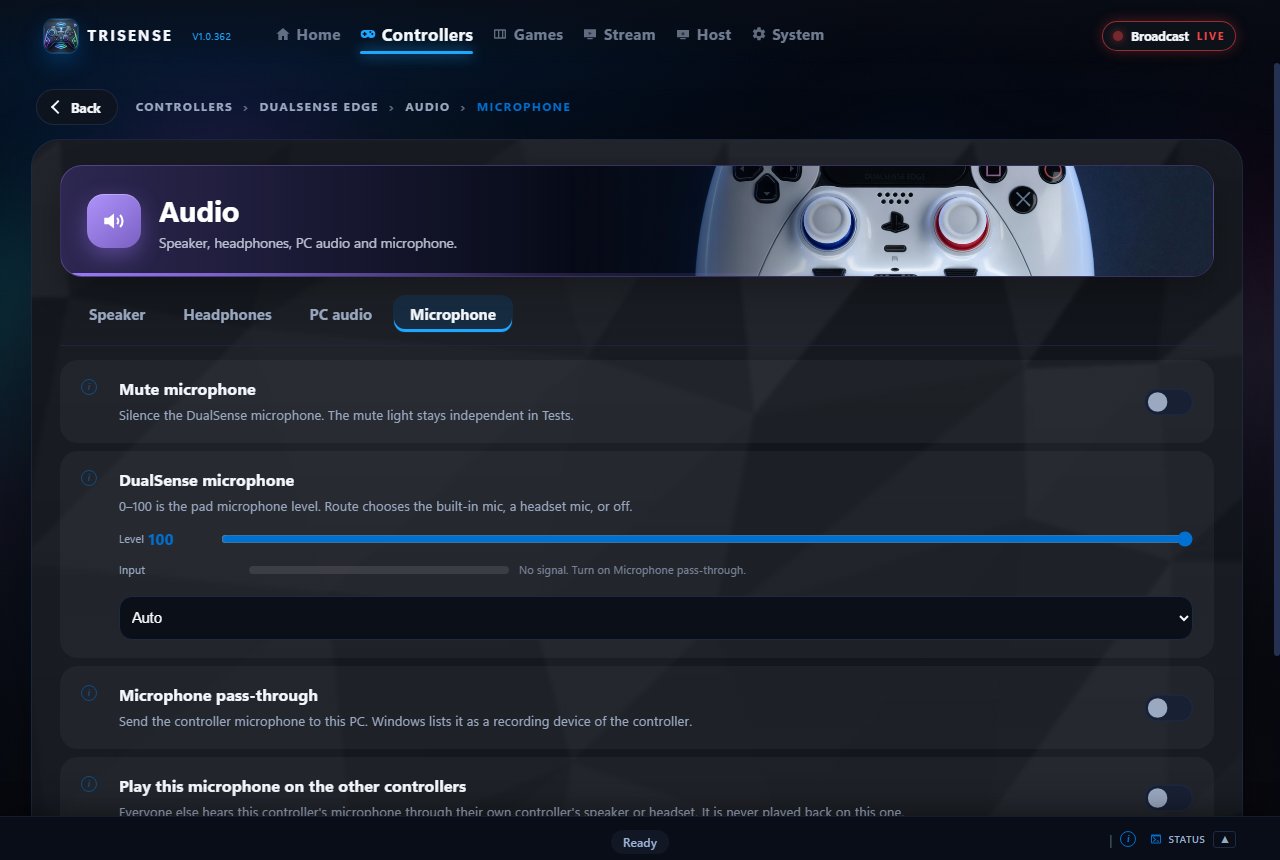
- Open Audio > Microphone.
- Switch on Microphone pass-through to send the controller's microphone to the PC, and set its level.
- Under Mute button, choose what the controller's mute button does.
Play a microphone on the other controllers
Lets players hear each other through their controllers. It needs at least two controllers connected.
- Select the controller whose microphone should be heard and open Audio > Microphone.
- Switch on Play this microphone on the other controllers.
- Repeat on any other controller that should be heard too.
Haptics and rumble
A DualSense has one pair of motors and two ways to drive them. Games made for the DualSense send HD haptics; other games send rumble. The game chooses which; these settings decide what is allowed and how strong it is.
HD haptics
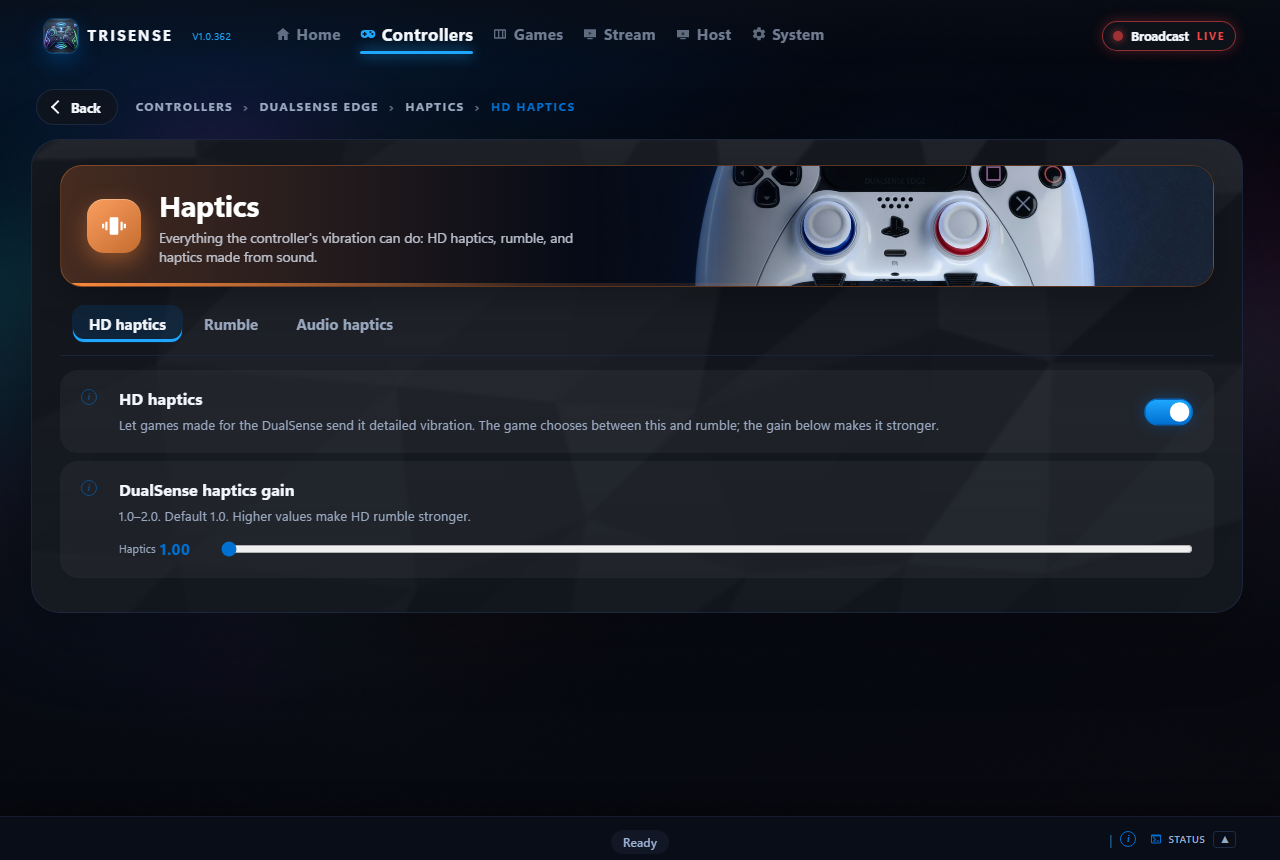
- Open Haptics > HD haptics and leave HD haptics on.
- Raise haptics gain if they feel weak (1.0 is normal, up to 2.0).
Rumble
- Open Haptics > Rumble and leave Classic rumble on.
- Set Classic rumble gain: 100% is what the game asked for.
- Choose a Rumble mode: v2 is the newer, more accurate one; v1 is the older one and about twice as strong. The controller uses one at a time.

Joy-Cons and the Switch Pro Controller
These have HD Rumble, and the same Haptics section. Their motor plays two tones, not a waveform, so TridentSense turns a game's detailed vibration into tones about 66 times a second: rumbles, thumps and engine notes come through, fine texture less so.
- For games' own haptics, set Appear as to DualSense and leave HD haptics on. HD Rumble strength makes it stronger.
- Rumble and its gain work as for any controller. There is one rumble mode, so that choice is not shown.
- Audio haptics makes HD Rumble from the PC's sound, on a cable or Bluetooth.
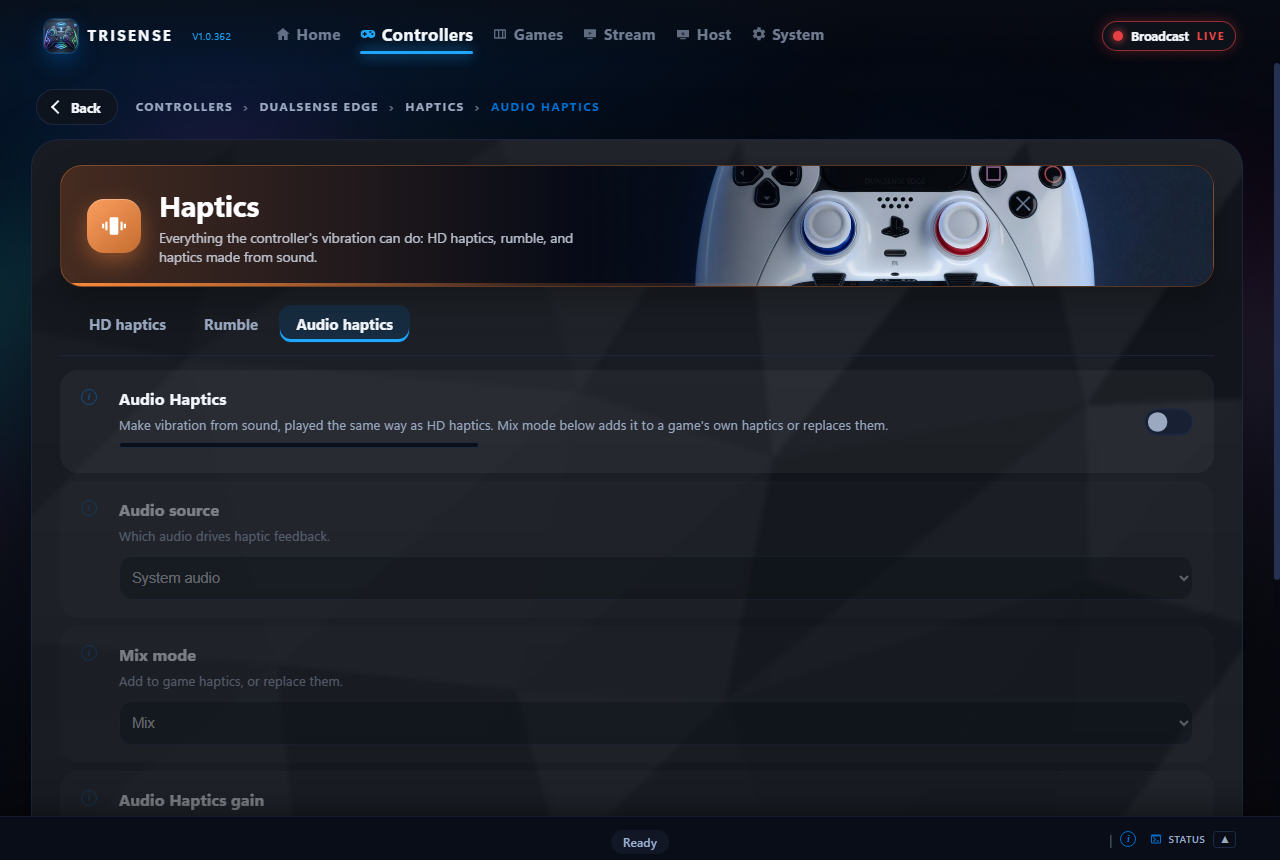
Audio haptics
Makes vibration from sound, so music and games without haptics can still be felt. It works over Bluetooth.
- Open Haptics > Audio haptics and switch Audio Haptics on.
- Choose the Audio source: the sound the PC is playing, or the sound sent to the controller.
- Choose a Mix mode: Mix adds it to a game's own haptics, Replace plays it instead.
- Set the gain, and shape it under Feel.
Triggers and Trigger Studio
Settings
- Open Triggers > Settings.
- Enable adaptive triggers is the master switch. Adaptive trigger intensity scales every effect.
- Receive trigger commands from games that support them lets games drive the triggers themselves.

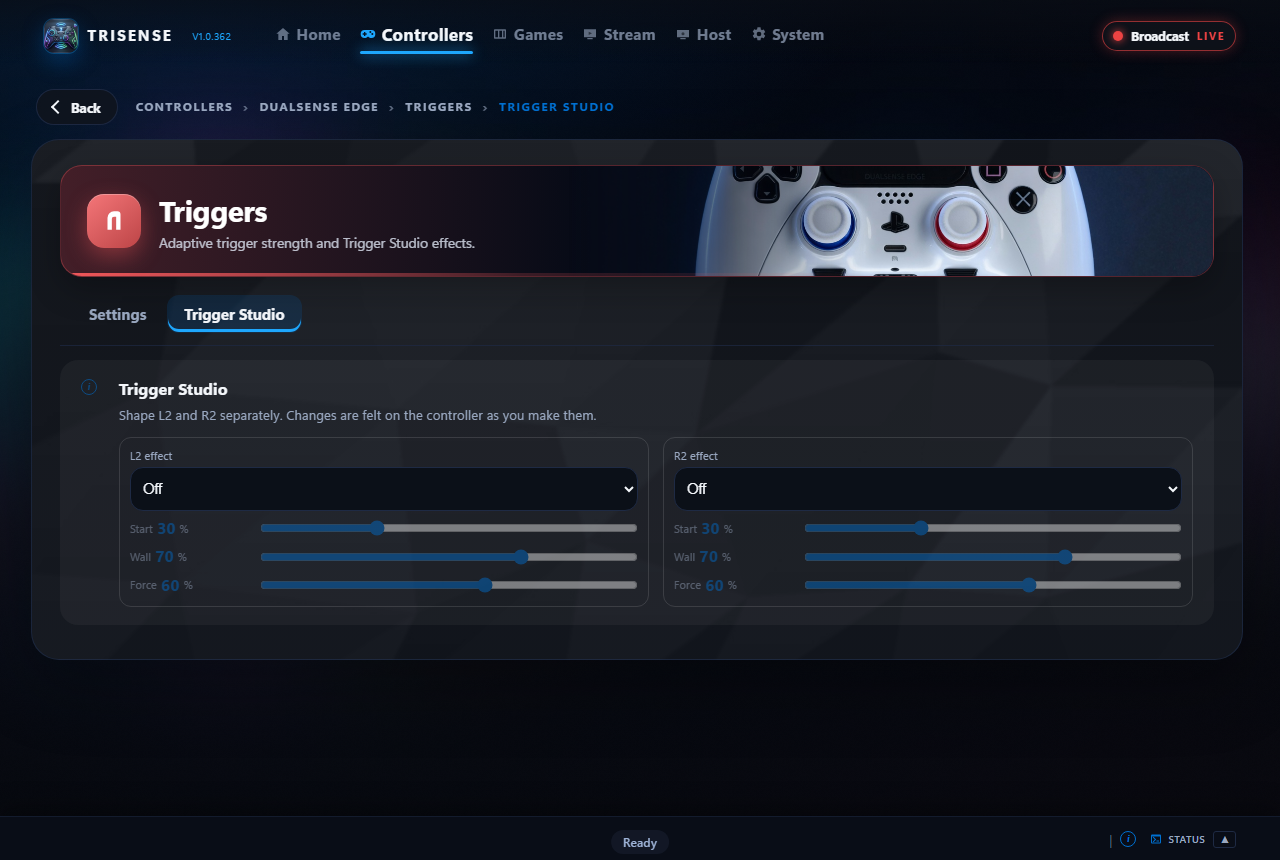
Trigger Studio
Gives L2 and R2 a feel of your choosing in games that have none.
- Open Triggers > Trigger Studio.
- Choose an effect for L2 and for R2. Choosing one sets its sliders to sensible starting points.
- For an adjustable effect, tune Start (where it begins in the pull), Wall (where it ends) and Force. Pull the trigger: you feel each change as you make it.
- Switch on Enable Trigger Studio in games which don't support adaptive triggers to use it in games.
- Type a name and press Save current to keep it as a trigger profile.
| Adjustable effects | Fixed feels |
|---|---|
| Feedback (resistance), Weapon (click), Vibration, Bow (draw and release), Galloping (double beat), Machine (motor) | GameCube, Very soft, Soft, Medium, Hard, Very hard, Hardest, Rigid, Choppy, Vibrate, Vibrate (slow pulse) |
Games that have their own trigger effects
- Under Games with adaptive trigger support, press Scan for games and pick one, or type its name and program (for example
eldenring.exe). - Optional: fill in Window title contains for a launcher that runs several games under one program name.
- Press Add game.
Lighting
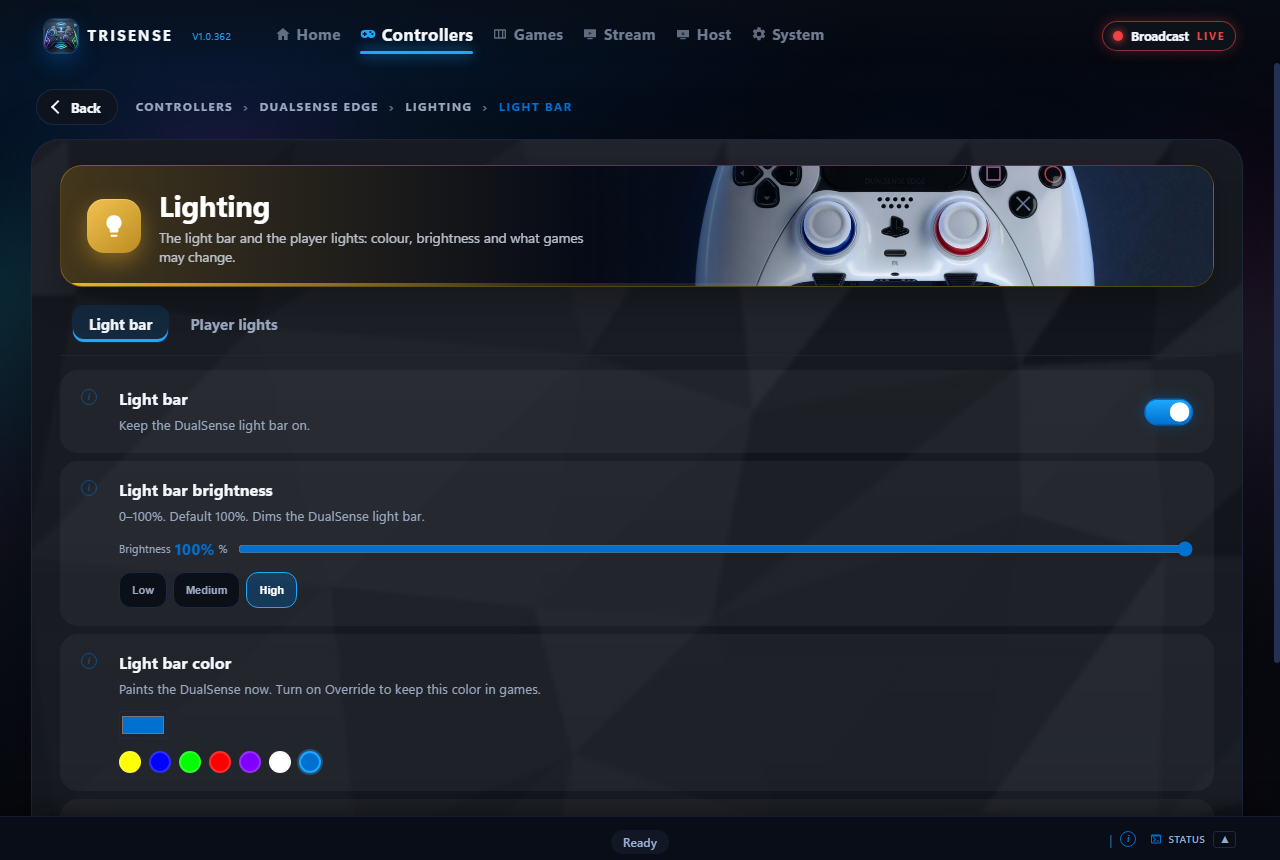
Light bar
- Open Lighting. Light bar switches it on or off; Light bar brightness dims it.
- Pick a Light bar color from the picker or the quick colours. The controller changes at once.
- Switch on Light bar override to keep your colour in games that would set their own.
- Automatic light bar restore puts your colour back after the controller reconnects.
Player lights
The five dots under the touchpad: Off, player 1 to 4, or all, and how bright. Player lights override stops games changing them, and Restore player lights puts them back after a reconnect.
With HWiNFO
- The light bar as a temperature gauge: blue when the PC is cool, through green and yellow, to red when hot. One setting for every controller with a light bar.
- Warn me when the computer runs hot: a notification, and a rumble if you like, when a temperature goes over its limit.
Both need HWiNFO switched on under Integrations. For the rest of the PC's lighting, see Lighting with OpenRGB.
Input
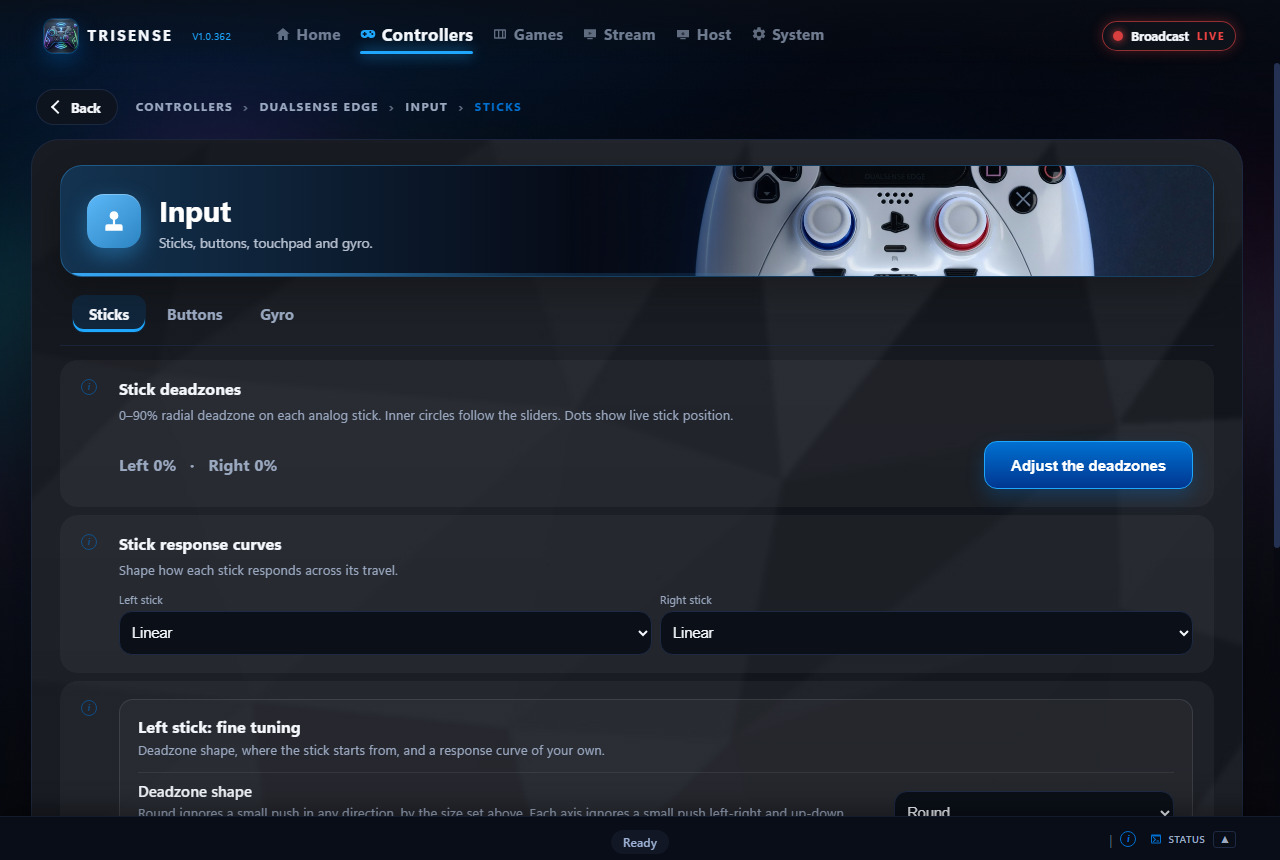
Sticks
- Open Input > Sticks.
- Under Stick deadzones, raise a stick's deadzone until a resting stick no longer drifts. It goes up to 90% for a badly worn stick; the travel left outside it is stretched to the full range. The dots show where each stick is now.
- Under Stick response curves, choose Linear (the stick as it is), Precise (finer near the centre) or Fast (full tilt sooner).
- Under the fine tuning, set a deadzone and anti-deadzone for each axis, or draw a curve of your own with four points.
Buttons
- PS opens Game Bar: the PS button opens the Xbox Game Bar.
- Block Edge profile switching: stops the DualSense Edge's Fn shortcuts changing its on-board profile mid-game.
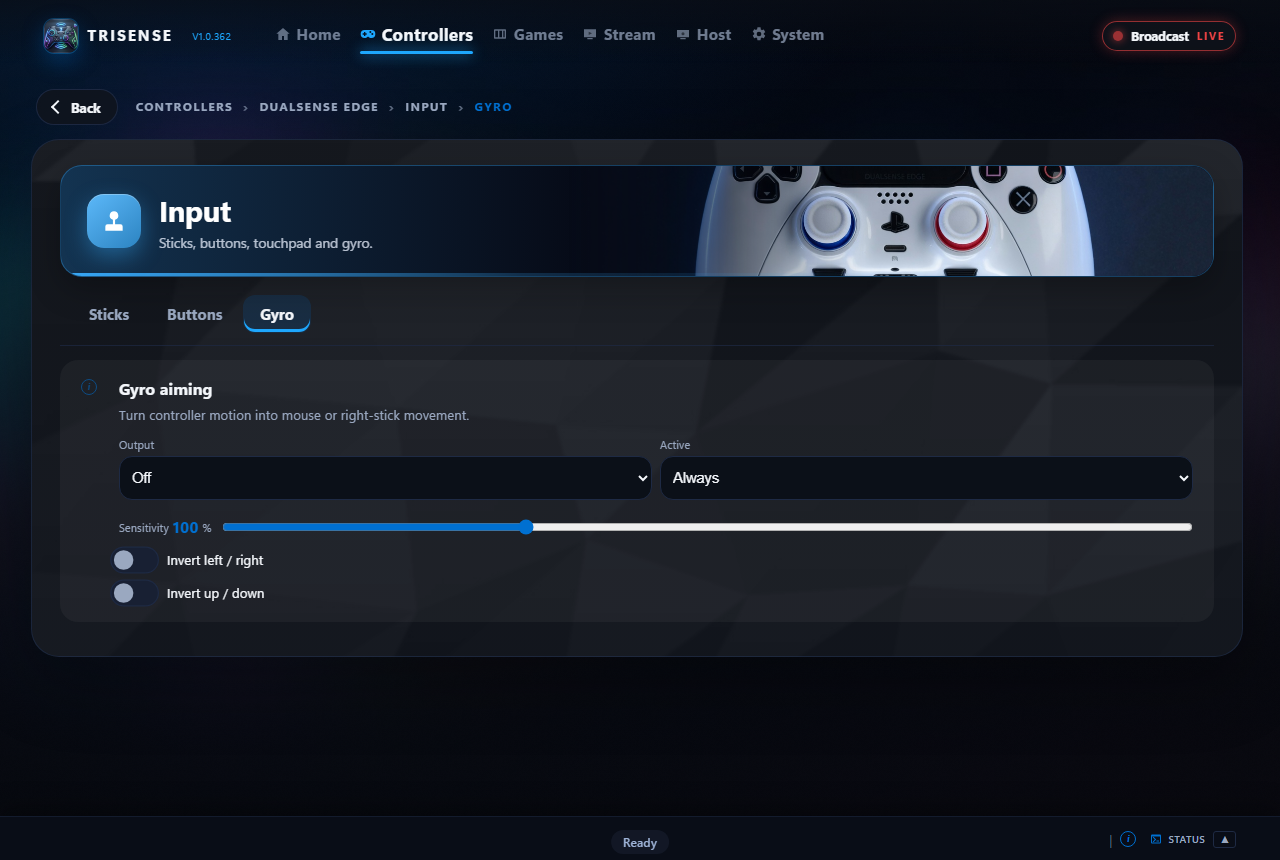
Gyro
- Open Input > Gyro.
- Gyro aiming turns tilting the controller into aiming: as the mouse, or added to the right stick, which works in any game and on a controller lent to another PC.
- Choose whether it is always on or only while a button you pick is held, how sensitive it is, and invert a direction if it is backwards.
Touchpad as mouse moves the Windows pointer with the touchpad; it can be switched from a chord.
Remapping
Remap a button
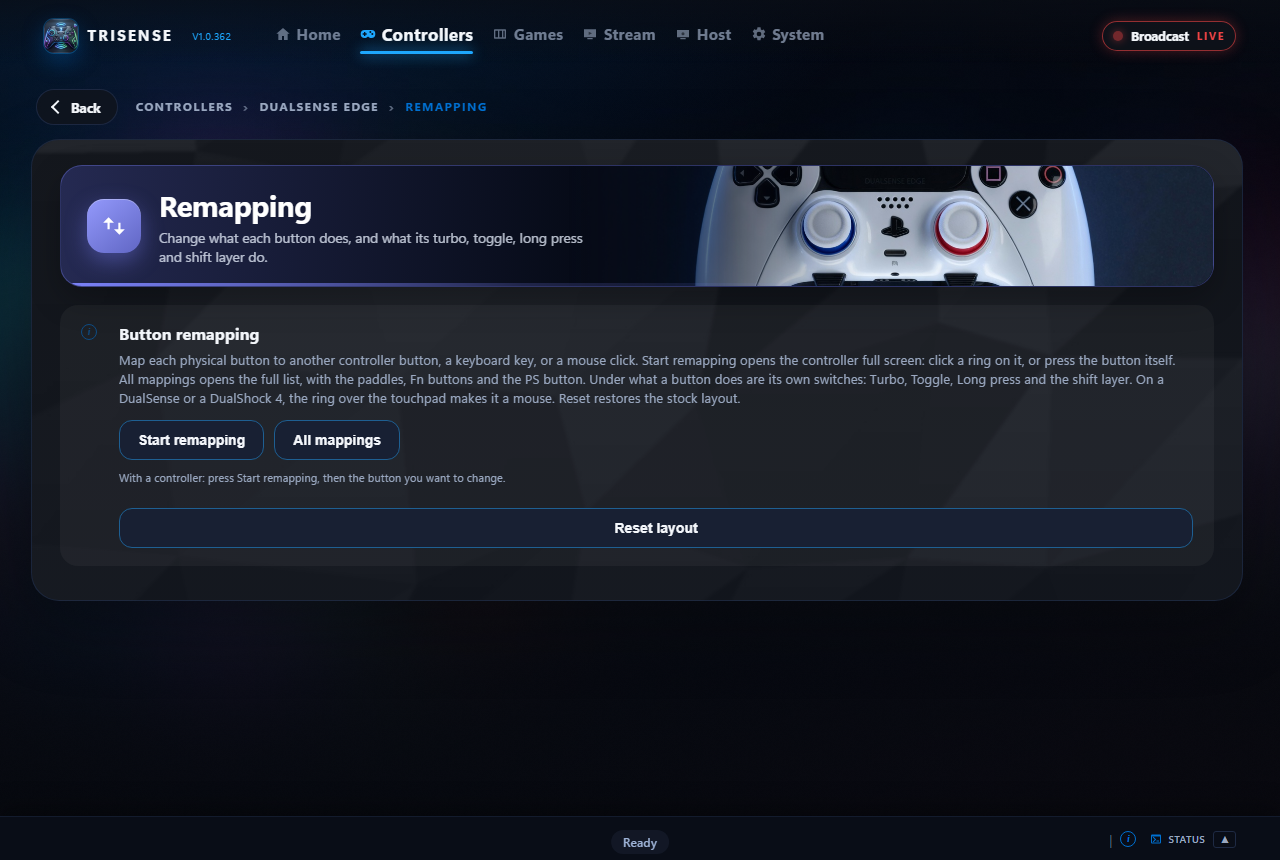
- Open Remapping and press Start remapping. Your controller opens full screen.
- Click the ring on a button, or press the button itself. All mappings opens the full list instead.
- Choose what it sends: another controller button, a keyboard key, several keys held together (Ctrl + C, for example), a mouse click, or nothing.
- Under each button: Turbo (repeats while held), Toggle (press once to hold), Long press (a second action when held), and the shift layer (what it does while your shift button is held).
Remap profiles, and layouts from Steam
- A remap is kept in the controller's profile (see Profiles), so a game can have its own through Auto Profiles.
- On a Steam game's page in the library, Controller layouts lists the community layouts Steam has for it. Bring one in and it becomes a remap profile of your own, for every controller or one only, given to that game.
Chords and macros
A chord is a few buttons held and one pressed, doing something none of them does alone. While a chord is held, games do not see its buttons. Open Chords on a controller's page. Everything a chord can do can also be said as a voice command.

The chords every controller starts with
| Hold | Press | Does |
|---|---|---|
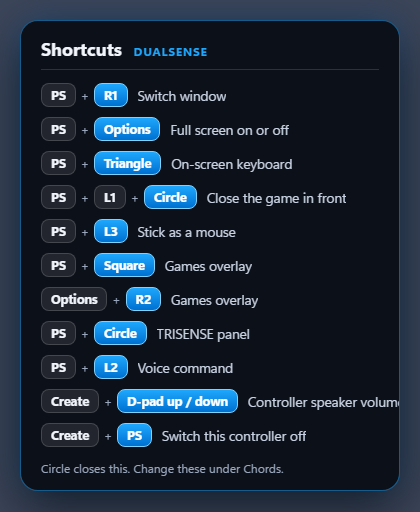
| PS | R1 | Switch window (Alt + Tab), held for as long as you hold the chord |
| PS | Options | Full screen on or off (Alt + Enter) |
| PS + L1 | Circle | Close the game in front |
| PS | Triangle | Show or hide the on-screen keyboard |
| PS | L3 | Stick as a mouse, on or off |
| PS | Square | Open or close the games overlay |
| Options | R2 | Open or close the games overlay (Start + RT) |
| PS | Circle | TridentSense's own window, down from the top of the screen over the game, and away again |
| PS | L2 | Voice command: hold, speak, let go |
Change or remove any of them. One you remove stays removed. To see a controller's chords at any time, hold PS on its own: the wheel comes up with the shortcut sheet beside it.
Build a chord
- Hold: add the buttons to hold, up to four. Pick them from the list, or press Record from the controller, hold them together on the controller and let go.
- Then press: choose the button that sets it off, or record it the same way.
- To do this: under Pick from lists, add a step. The line under the builder reads back what you have built.
- Press Add chord. Edit on a saved chord loads it back into the builder.
What a chord can do
| Kind | Examples |
|---|---|
| A key, mouse button or media key | F5, left click, next track |
| Keys held together | Ctrl + C, Alt + Tab. Add the first key as a step, then use + key held with these on that step. |
| A ready-made shortcut | Twenty-two of them: switch window, full screen, move the window to the next or previous monitor, restart the graphics driver, Task Manager, show the desktop, choose the display or sound output, HDR on or off, Game Bar, record the last 30 seconds, start or stop recording, screenshots, and the Steam, NVIDIA and AMD overlays |
| A macro | Several steps in a row, each pressed and let go before the next |
| Switch a setting | Any of 23: the speaker, headphones, microphone, PC audio on this controller, HD haptics, rumble, Audio Haptics, adaptive triggers, Trigger Studio, light bar and its override, touchpad as mouse, power saving, auto power-off, Raw mode and more |
| Raise or lower a slider | Any of 13: speaker and headphone volume, microphone level, haptics, rumble and Audio Haptics gain, trigger intensity, light bar brightness, stick deadzones, touchpad and gyro speed; hold the chord to keep it moving |
| Something in TridentSense | On-screen keyboard, stick as a mouse, close the game in front, the games overlay, TridentSense's own window |
| A program | Launch or close one you have set up under System > Apps, or a Moonlight game |
| RivaTuner | Overlay on or off, a frame limit, one of the TridentSense overlays or one you built, recording frame rates (RivaTuner) |
| Steam and Moonlight | A Steam game started, or a game Moonlight offers from another computer |
| OBS Studio, Afterburner, REAPER | Record, stream, replay buffer, scenes; a clock profile; play, record, markers (Integrations) |
| Home Assistant | A device toggled, on or off; a scene or script run; a room or floor switched (Home Assistant) |
| OpenRGB | Lights off or on, a colour, an effect, brighter, dimmer, a profile, the temperature gauge (OpenRGB) |
| Overlays | A launcher's overlay: Steam, Game Bar, GeForce NOW, Luna and the rest (Overlays) |
| Voice | Listen for a voice command while held |
A macro, step by step
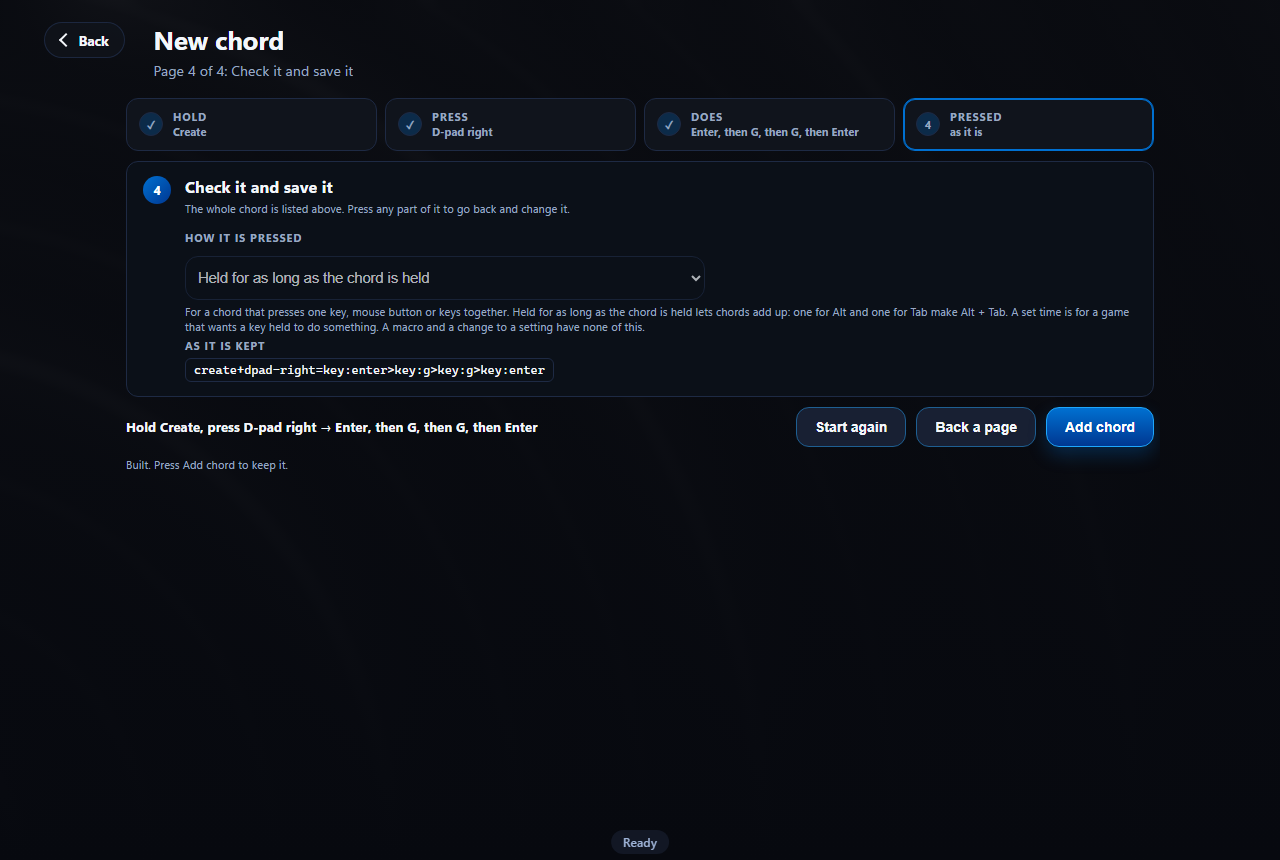
To have Create + D-pad right type "gg" in game chat (in most PC games Enter opens chat and Enter again sends):
- Under Hold add Create. Under Then press choose D-pad right.
- Under To do this add four steps in order: Enter, G, G, Enter.
- Press Add chord. The help panel under the builder has a Build this one for me button that does all of this.
Typing it instead
Switch step 3 to Type it yourself. Put > between steps that run one after another and + between keys held together:
| Typed | Means |
|---|---|
key:f5 | F5 |
key:ctrl+key:c | Ctrl + C |
key:ctrl+key:c>key:ctrl+key:v | Copy, then paste |
key:enter>key:g>key:g>key:enter | Type "gg" in chat |
Press Use this; it reads back what it understood, or names the part it does not know. The panel under the builder lists every name you can type.
On-screen keyboard
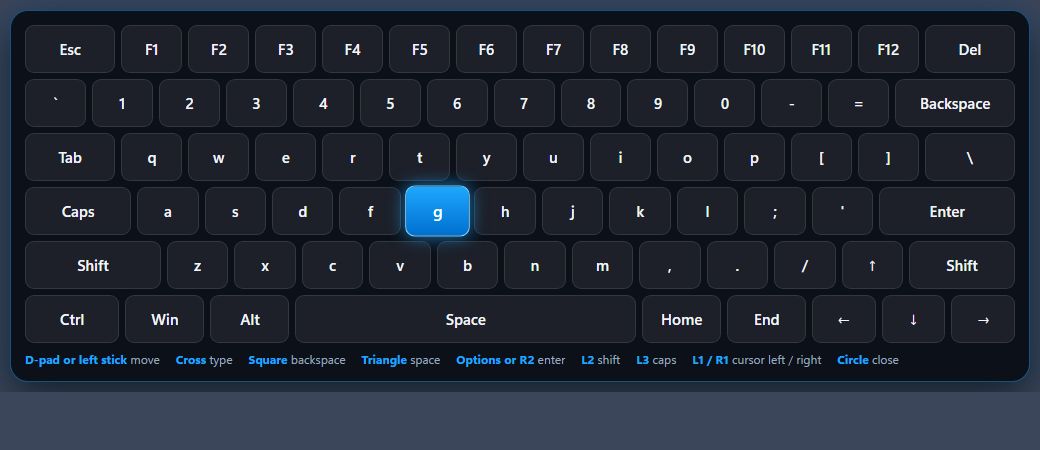
A full keyboard over whatever is on screen, driven by the controller. It never takes focus, so what you type goes to the window behind it.
- Click into the box you want to type in, or leave the game's text box selected.
- Hold PS and press Triangle. The keyboard appears at the bottom of the screen.
- Move the highlight and type. Press the chord again, or Circle, to put it away.
| Control | Does |
|---|---|
| D-pad or left stick | Move the highlight; hold to keep moving |
| Cross | Type the highlighted key |
| Square / Triangle | Backspace / Space |
| Options or R2 | Enter |
| L2 / L3 | Shift for the next key / Caps lock |
| L1 / R1 | Move the text cursor left / right |
| Circle | Close |
Stick as a mouse
For a launcher window, an installer, an "OK" button: anywhere a controller cannot reach. It works on every controller.
- Hold PS and press L3 (click the left stick). A box on screen says it is on.
- Use the controller as below. Press the chord again to turn it off.
| Control | Does |
|---|---|
| Left stick | Move the pointer: slowly near the centre, quickly at the edge |
| Right stick up / down | Scroll |
| Cross or R2 | Left click; hold to drag |
| Circle or L2 | Right click |
| Square | Middle click |
| D-pad | Arrow keys |
| Options / Create | Enter / Esc |
Close the game in front
For a game that has stopped answering, which Alt + F4 cannot close.
- With the game in front, hold PS + L1 and press Circle. A box names the window and asks.
- Press the chord again within five seconds to close it.
Launch and close programs
A chord or a slot of the wheel can start a program, or close one.
- Open System > Apps.
- Type the program's name (
notepad,chrome.exe), its full path, or an address such assteam://rungameid/620; or choose it in File Explorer. - Choose Launch or Close and add it.
- Give it a chord under Chords, or a slot under System > Wheel.
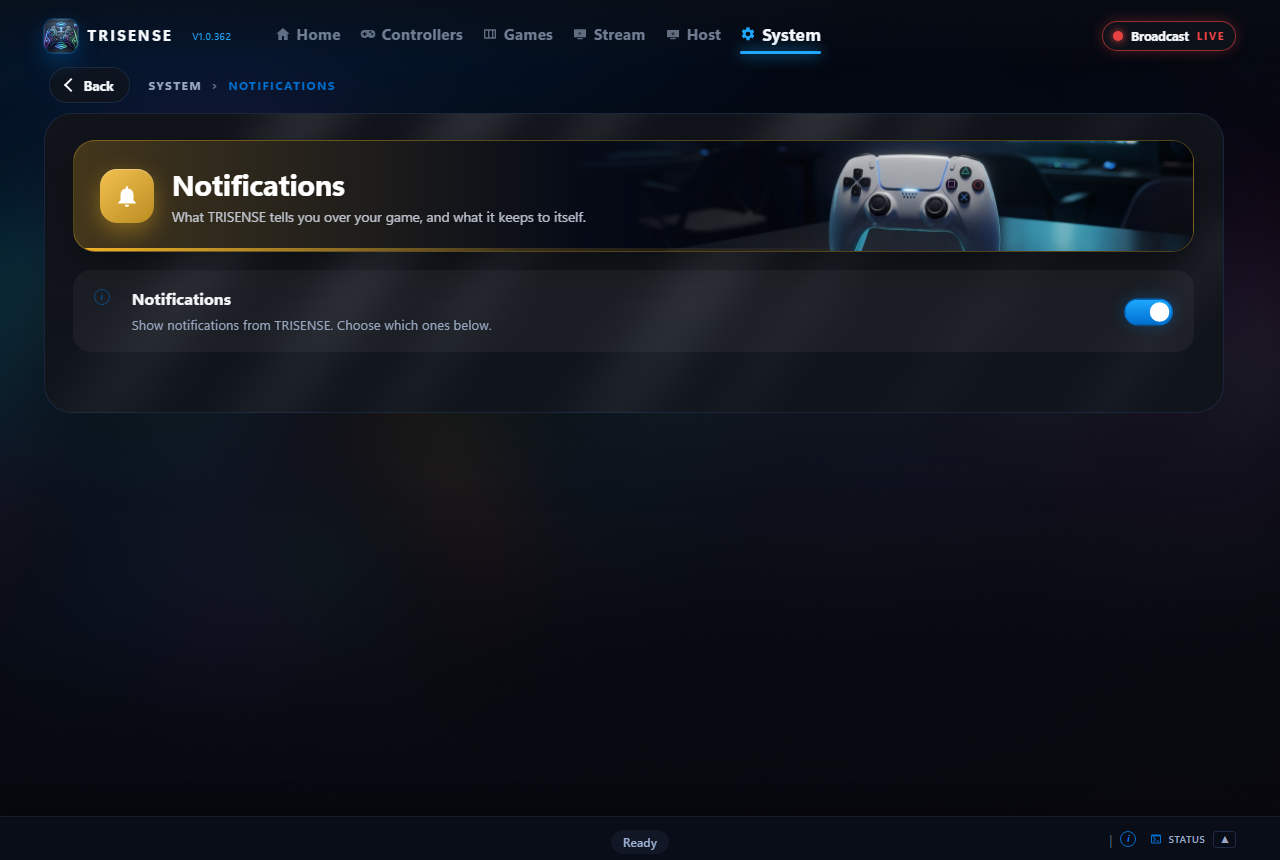
Notifications
A small box in the top corner of the screen you are playing on. It never takes focus and clicks pass through it. Open System > Notifications.
- The switch at the top turns every notification on or off.
- With it on, each kind below has a switch of its own.
| Group | Kinds |
|---|---|
| Controllers | Connected, disconnected, weak Bluetooth signal |
| Battery | Low (20%), critical (10%), fully charged, charging started |
| Games | Game profile applied, game installed, programs launched or closed |
| Computer | Running hot (with HWiNFO) |
| Shortcuts | What a chord changed: a setting on or off, a slider's value |
| Play There | The link to a PC you borrow controllers from connected, or was lost |
The wheel and shortcut sheet
Hold the middle button and a wheel of shortcuts comes up in the middle of the screen, with every shortcut that controller has listed beside it in its own button names.
- Hold PS (Xbox, or Home on a Switch controller) on its own for a moment.
- Point the left stick (or the D-pad) at an option and press Cross to do it.
- Press L1 or R1 to go to the next wheel, if you keep more than one.
- Press Circle, or PS again, to put it away without doing anything.
Choose what is on it
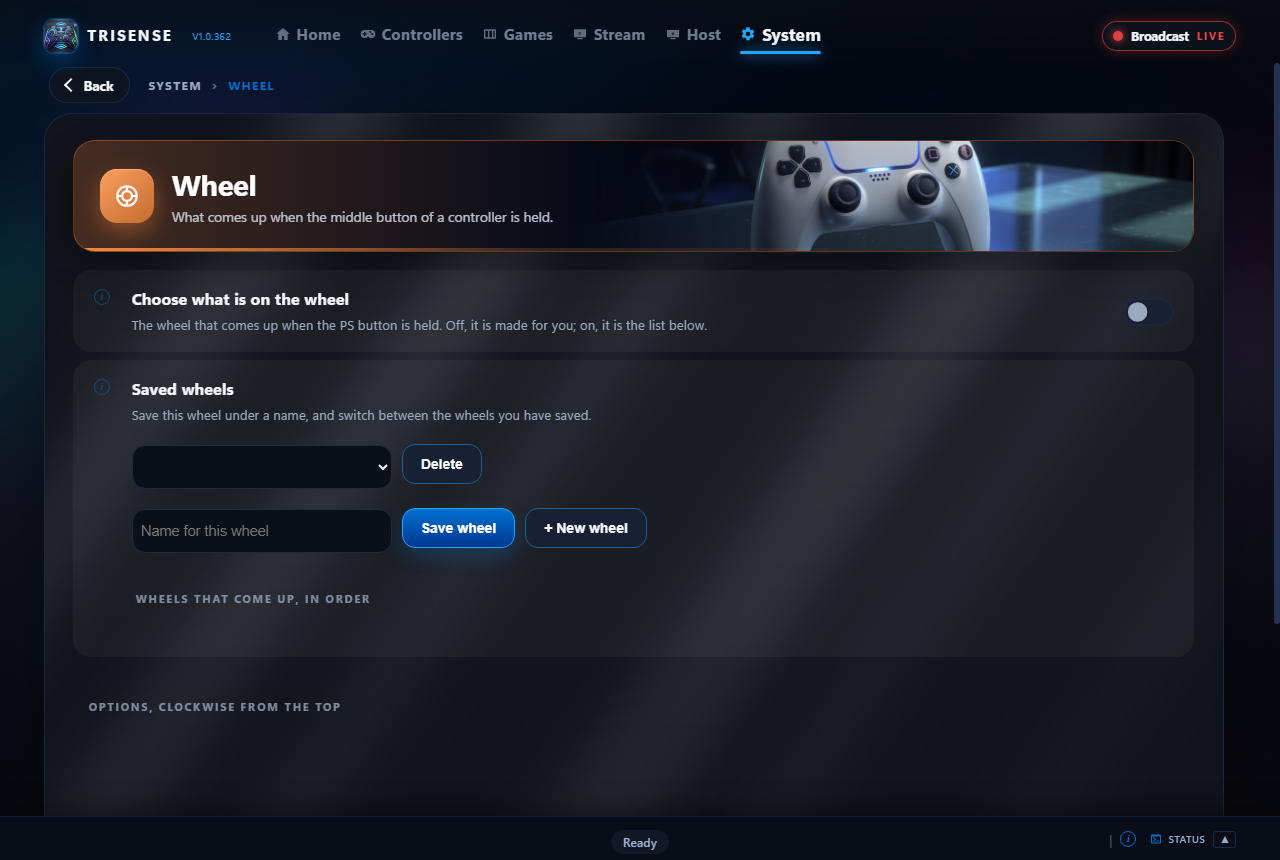
- Open System > Wheel and switch on Choose what is on the wheel. Left off, the wheel has TridentSense's own four options and then whatever that controller's chords do.
- Fill up to eight slots, clockwise from the top. Anything a chord can do can be on a wheel.
- Type a name and save it. + New wheel starts another.
- Under Wheels that come up, in order, switch wheels on or off, move them up or down, change or delete them.
| Wheel | What is on it |
|---|---|
| Couch Rescue | On-screen keyboard, stick as a mouse, switch window, full screen, move the window to the next monitor, Task Manager, show the desktop, games overlay |
| Handy Extras | TridentSense's window, screenshot, record the last 30 seconds, clipboard history, project to another screen, HDR, play or pause, next track |
| Performance | RivaTuner's commands. Added the first time RivaTuner is switched on |
Games overlay
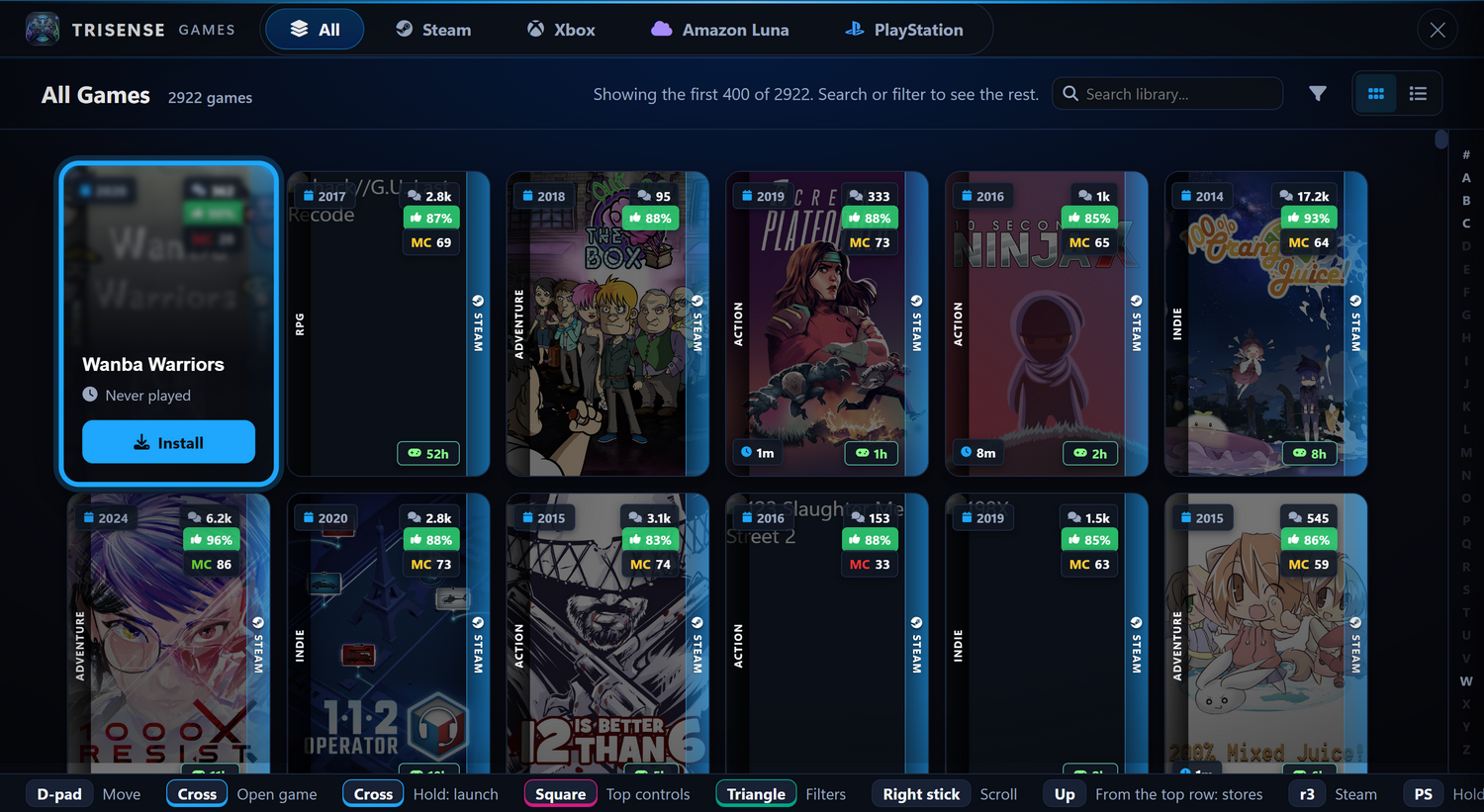
Your game libraries in an overlay that slides up from the bottom of the screen over whatever is running, driven by the controller. The Games tab of TridentSense's window shows the same thing.
Open and close it
| To | Do |
|---|---|
| Open or close | Hold PS, press Square; or hold Options, press R2 |
| Open with the mouse | Games at the top of TridentSense's window |
| Close with the mouse | The X on its top bar, or click anywhere outside it |
It also closes by itself when you launch a game from it.
The tabs
- All is first, and is where the overlay opens, showing what is installed. It puts every store together and has a Store filter.
- Then a tab for each store that is switched on: Steam, Epic Games, GOG, the cloud services, your consoles, and the rest (see Stores), and one for each of your other PCs (see Chairs).
- Every tab has the same header: the count of games, search, filters, grid or list, and an A to Z bar down the side. The title at the top left changes as you filter.
- Only games are listed. Add-ons and DLC are left out.
- A game you have in several places is one card. A strip down the right of its cover shows each store it is in, and its page lists every way to play it: installed, or streamed with GeForce NOW, Amazon Luna, Xbox Cloud Gaming or another PC. Each store's own tab lists its games the same way.
Filters
Installed (with Streamable for games you can stream; Games > Stores > Global can count those as installed), store, genre, tags, controller support, VR, Metacritic score, Steam rating, number of reviews, release year, install size and how long a game takes to beat. Games from other stores are matched to their Steam page so the same details can be shown for them.
Controls
The bar along the bottom of the overlay shows what each button does where the highlight is. These are the main ones, by a DualSense's names:
| Control | Does |
|---|---|
| D-pad or left stick | Move |
| Right stick | Scroll |
| Cross | Select; on a game, open its details. Hold to launch |
| Circle | Back, or close what is open |
| Square | Jump between the games and the controls at the top (search, filters, view) |
| Triangle | Open or close the filters and sort panel |
| L1 / R1 on the Steam tab | Folders / Quick Move panel (with Collection management on) |
| L2 with Cross on the Steam tab | Select several games (with Collection management on) |
| R2 / L2 in a game's details | Next / previous section |
Choosing the search box brings TridentSense's on-screen keyboard up under it. Folders, Quick Move and multi-select are Steam's own and stay on the Steam tab; switch off Collection management under Games > Stores > Steam and the Steam tab behaves like the others.
A game's details
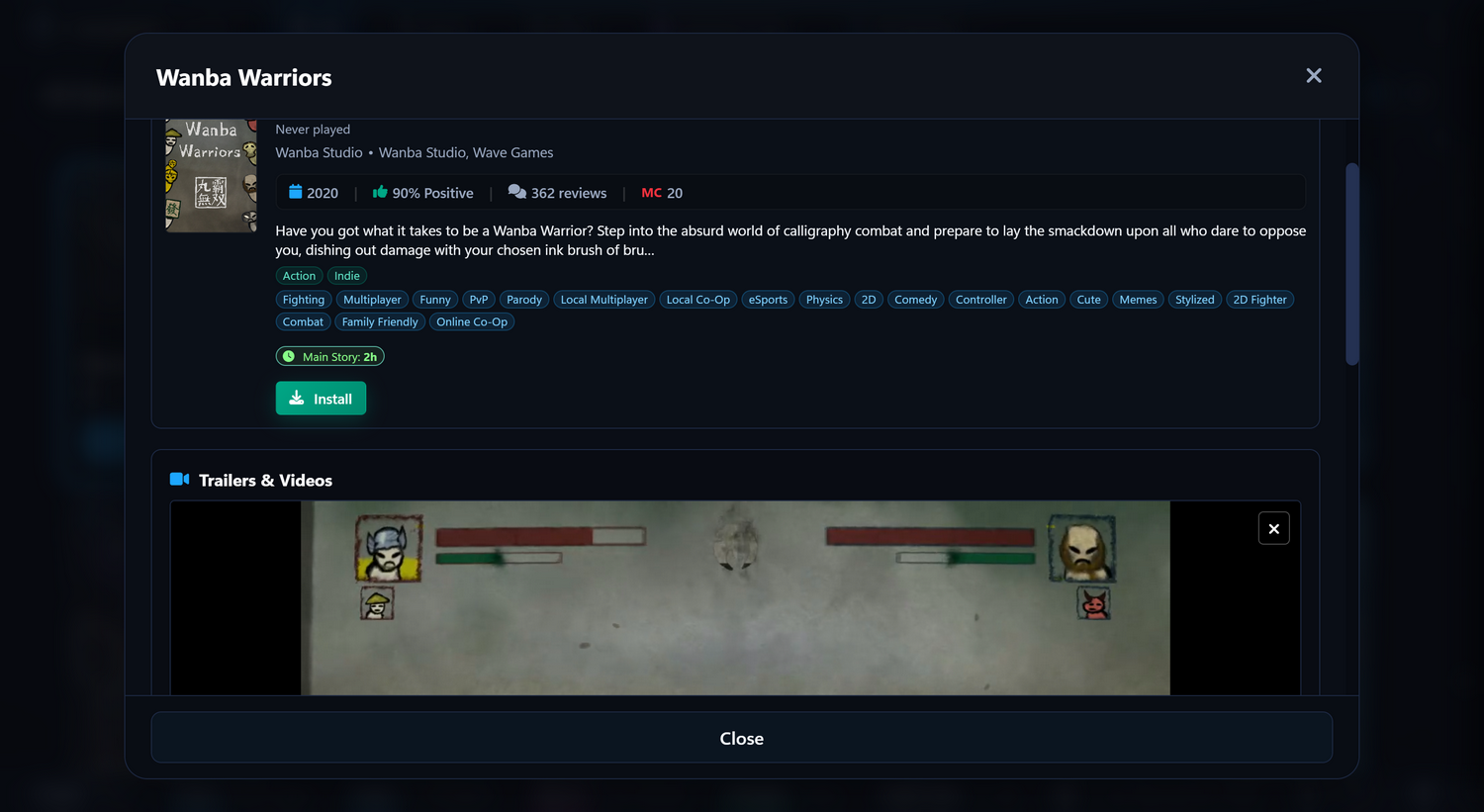
Select a game to see its description, tags, review score, how long it takes to beat, trailers and screenshots, the ways to play it, and to Launch, Stream, Install or Uninstall it.
Stores
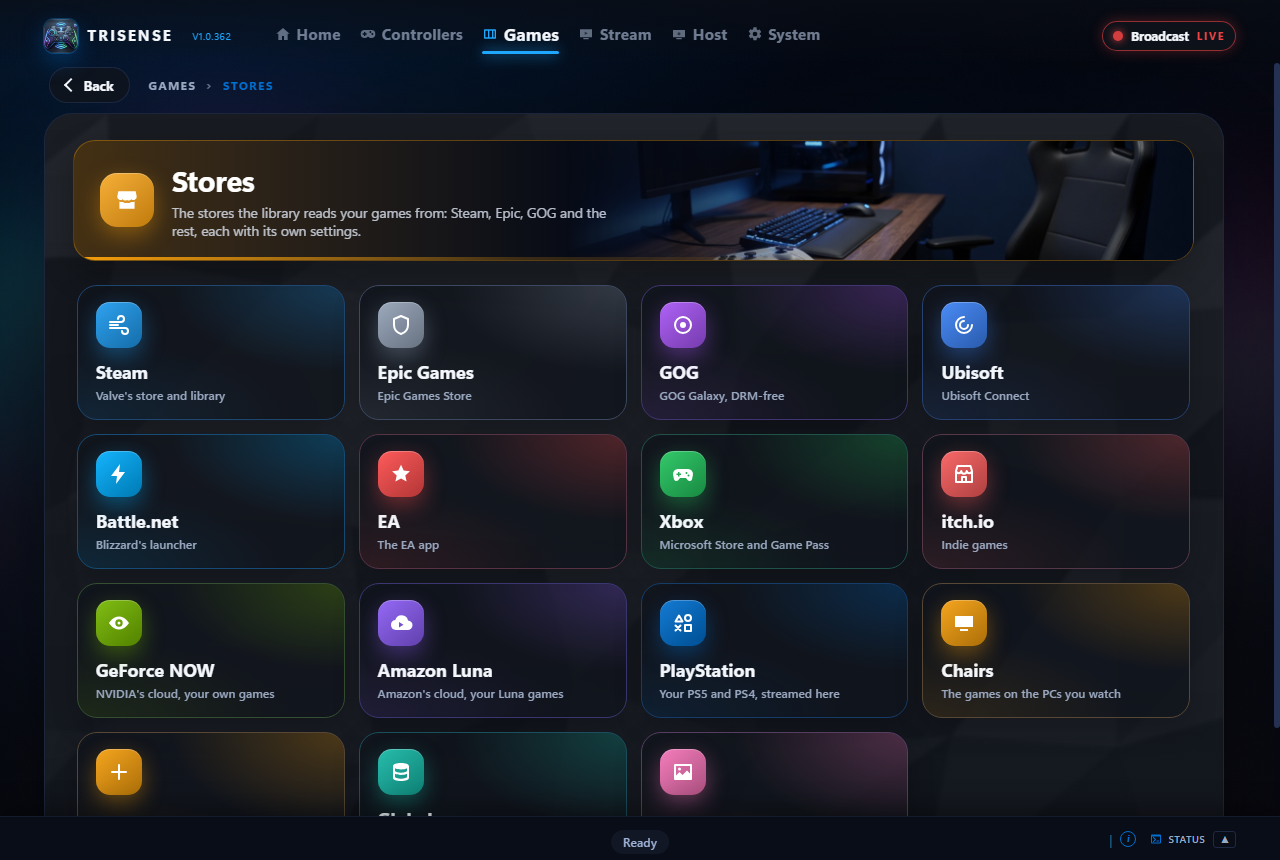
Open Games > Stores. Each store has a page, with its settings and its Cached data. Global and SteamGridDB come last.
| Store | What it needs |
|---|---|
| Steam | Your Steam ID and a Steam Web API key (free from Steam), and your profile's Game details set to Public. Lists everything you own. |
| Epic Games, GOG, itch.io | Nothing for installed games. Switch on Shaky Integration and sign in once to list what you own but have not installed. |
| Xbox | Nothing. A switch chooses whether Game Pass games are listed; they are marked on the cover. |
| Ubisoft, EA, Battle.net | Nothing. Installed games are listed. |
| GeForce NOW, Amazon Luna | Off until switched on, and a sign-in once. See Cloud gaming and consoles. |
| PlayStation | Your PlayStation 5, through the PS Remote Play app or chiaki-ng. See Cloud gaming and consoles. |
| Moonlight | Moonlight switched on under Integrations. |
| Chairs | Off until switched on: the games installed on your other PCs. See Chairs. |
| Manual | Folders of your own to look through. |
| Global | Not a store: what is cached for all of them together, and whether streamable games count as installed. |
- Choose a store on the left and switch it on. Its launcher is found by itself; if it was not, the page offers Choose its folder.
- For Steam, enter the key and ID on its Settings tab and save.
Installing and uninstalling
Steam games are installed and uninstalled from the overlay. For Epic, GOG and itch.io the request is handed to that store's launcher; TridentSense watches for the install to finish, marks the game installed and tells you.
Manual: games that belong to no store
- On the Manual page, add the folders your games are in.
- TridentSense lists one game for each folder inside them: its largest program. Switch off any that is not a game, or Deny a program so that the next largest is taken on the next scan.
Cloud gaming and consoles
| Service | How it plays | Set it up |
|---|---|---|
| GeForce NOW | In NVIDIA's app when it is installed, or in Microsoft Edge | Games > Stores > GeForce NOW: switch it on, sign in with NVIDIA to list your games, and sign in to the player once. Start games straight away skips GeForce NOW's own page for the game |
| Amazon Luna | In a window of its own, full screen (F11 switches, Esc leaves full screen) | Games > Stores > Amazon Luna: switch it on and sign in once in the window it opens |
| Xbox Cloud Gaming | In the Xbox app, or in Microsoft Edge | Nothing: Game Pass games are offered with Stream beside Install |
| Your Xbox | Through xbox.com's console streaming | Games > Stores > Xbox: switch the console on there |
| Your PlayStation 5 | Through the PS Remote Play app or chiaki-ng | Games > Stores > PlayStation: point at the app, or find the console for chiaki-ng |
On the Xbox and PlayStation tabs, the console itself is the first card.
Chairs: games on your other PCs
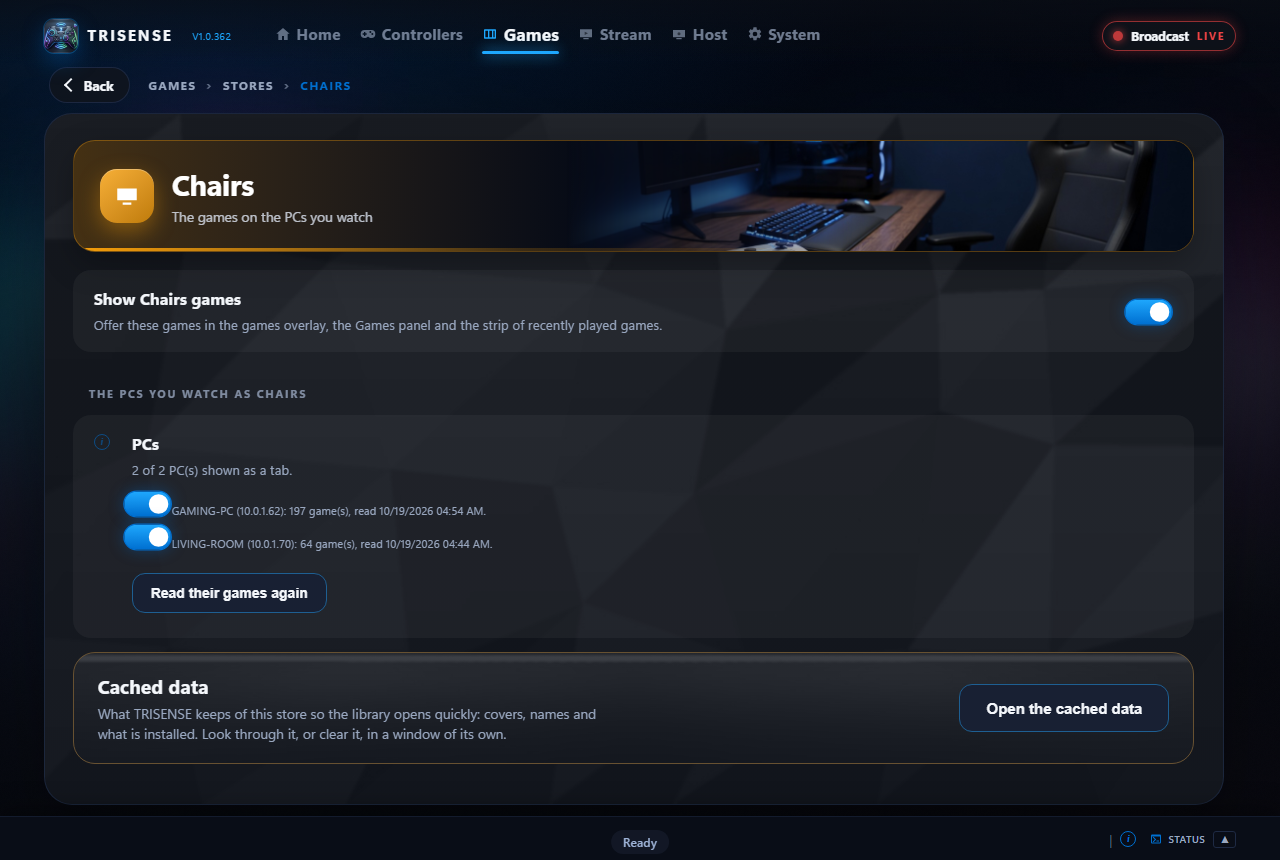
- Join each of your other PCs as a Chair once, so this PC has its PIN (see Joining another PC).
- Open Games > Stores > Chairs and switch it on. Each PC is listed with a switch of its own.
Cover art and details
What the library looks up is kept on this PC so that it opens quickly. Each store's Cache tab, and Games > Stores > Global for all of them, shows how far each kind has got and has a Refresh for it.
| Kind | What it is |
|---|---|
| Cover art | The picture on each tile |
| Metacritic | The critics' score |
| How Long to Beat | Hours to finish. Looked up after Metacritic, for the games Metacritic did not have |
| Steam ratings, reviews, tags | The rating, the number of reviews and the tags from the game's Steam page |
| Licence | Steam only: whether a game is still yours |
Interface, beside it, sets how large the library is drawn.
Fixing covers (SteamGridDB)
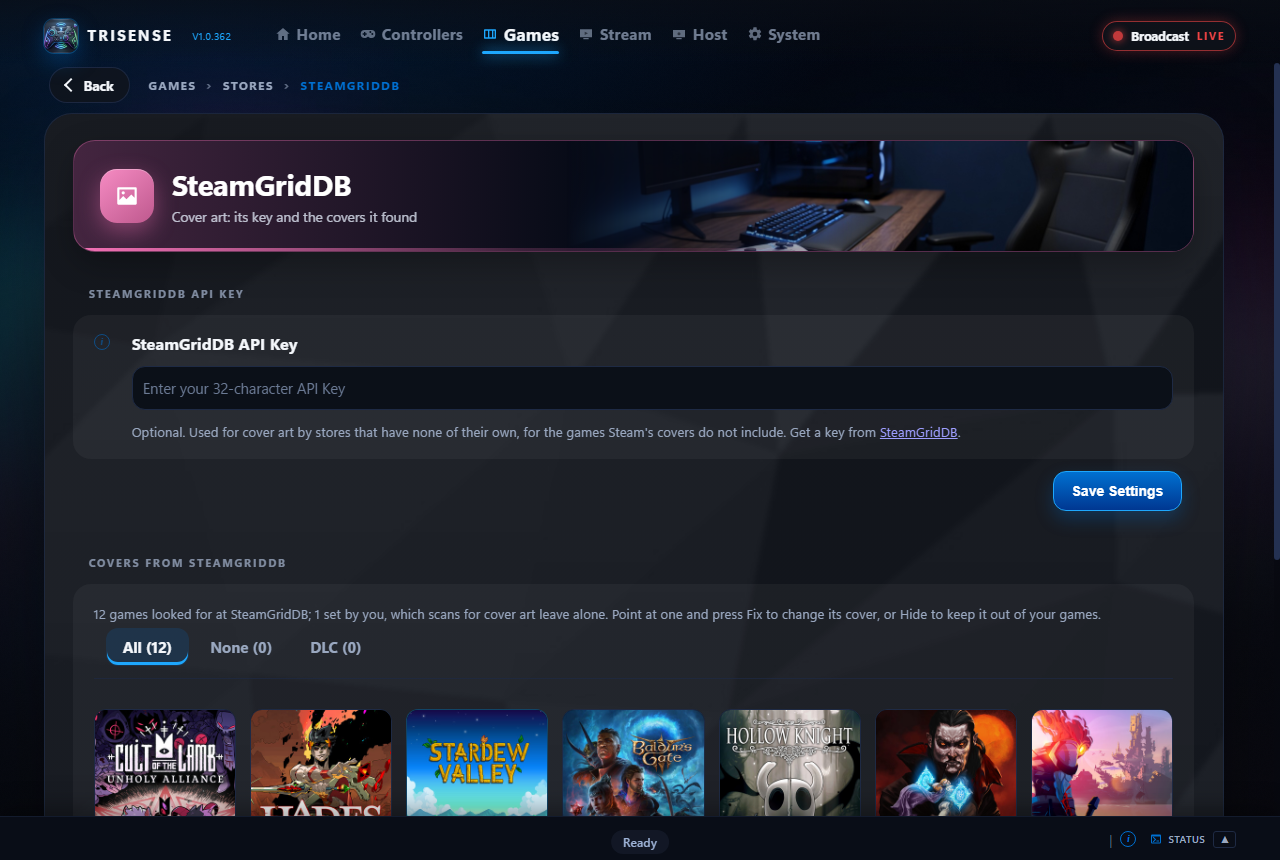
Games that Steam has no cover for are looked up at SteamGridDB. Open Games > Stores > SteamGridDB.
- Enter a SteamGridDB API Key (free from SteamGridDB) and save.
- The grid below shows every game that was looked up there. All, None (no cover found) and DLC filter it.
- Press Fix on a game. Correct the name and search again, then choose a picture; or give a web address; or browse for a picture on this PC; or Remove the cover so the game is shown by its name.
- Hide keeps a game out of the library altogether.
Mods
Games > Mods: TridentSense's own mods, which watch a game's screen and turn what they see into rumble, light bar colours and trigger feel. Nothing reads the game's memory.
- Start the game, then make a mod for it: mark the health bar, the counter or the character on the screen.
- Choose what happens: a colour as health falls, a rumble when a counter runs out, a trigger that stiffens with your ammunition. Rules are suggested for what you mark, and you can change them.
Overlays
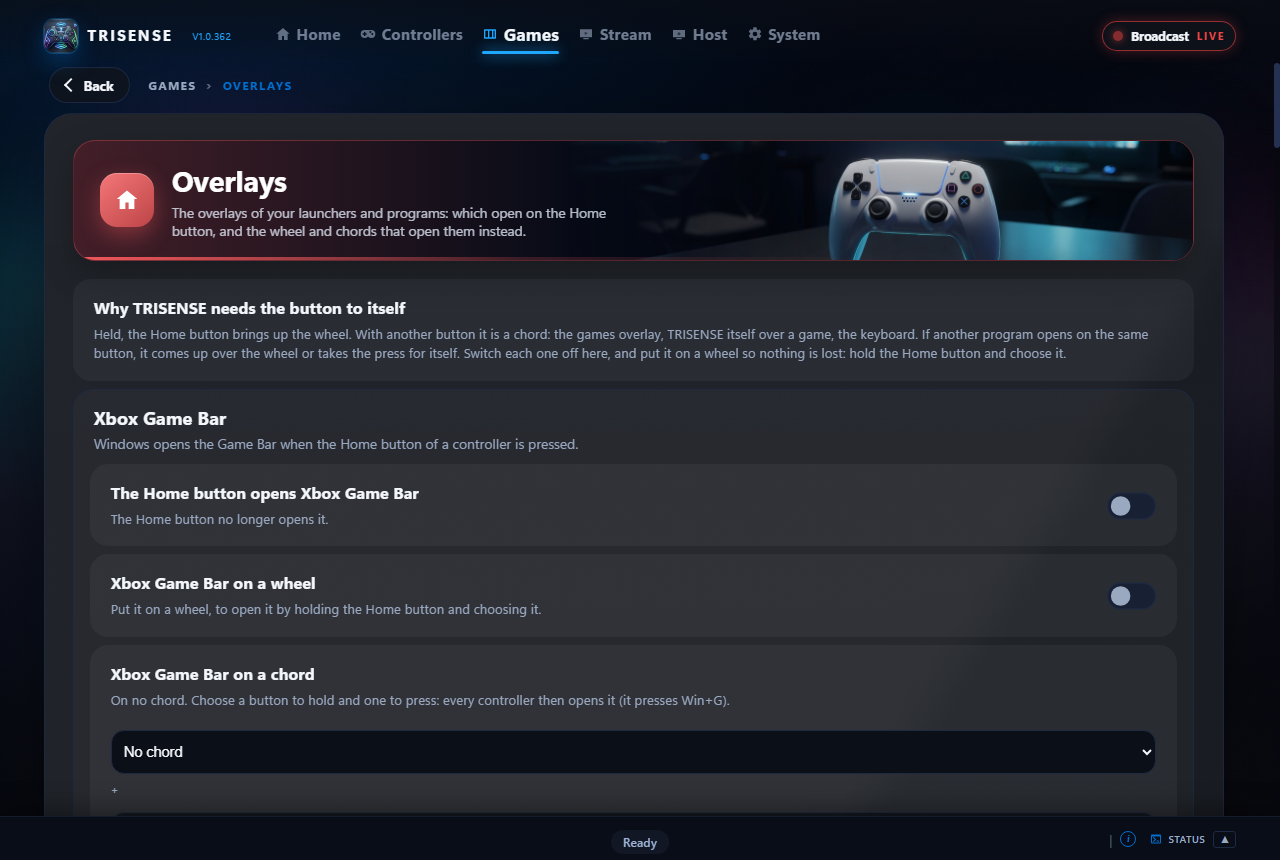
Games > Overlays lists the overlay of every launcher on this PC: Steam, Xbox Game Bar, GeForce NOW, Amazon Luna, Ubisoft and the rest, with the key each opens with.
- Give any of them a chord, so the controller opens it in the game.
- Choose what the controller's middle button opens when pressed on its own.
Bring to Front
A game launched from a controller sometimes starts in full screen behind the window that launched it. With Bring to Front on (Games > Settings), TridentSense notices a full-screen game that is not in front, waits about a second and brings it forward, once.
Profiles and Auto Profiles
A global profile is a named copy of everything on a controller's tabs. Trigger Studio and Remapping also have their own smaller profiles.
Save and apply
- Set the controller up the way you like.
- Open Profiles > Global, type a name and press Save current.
- To use one later, choose it and press Apply.

Switch automatically with a game: Auto Profiles
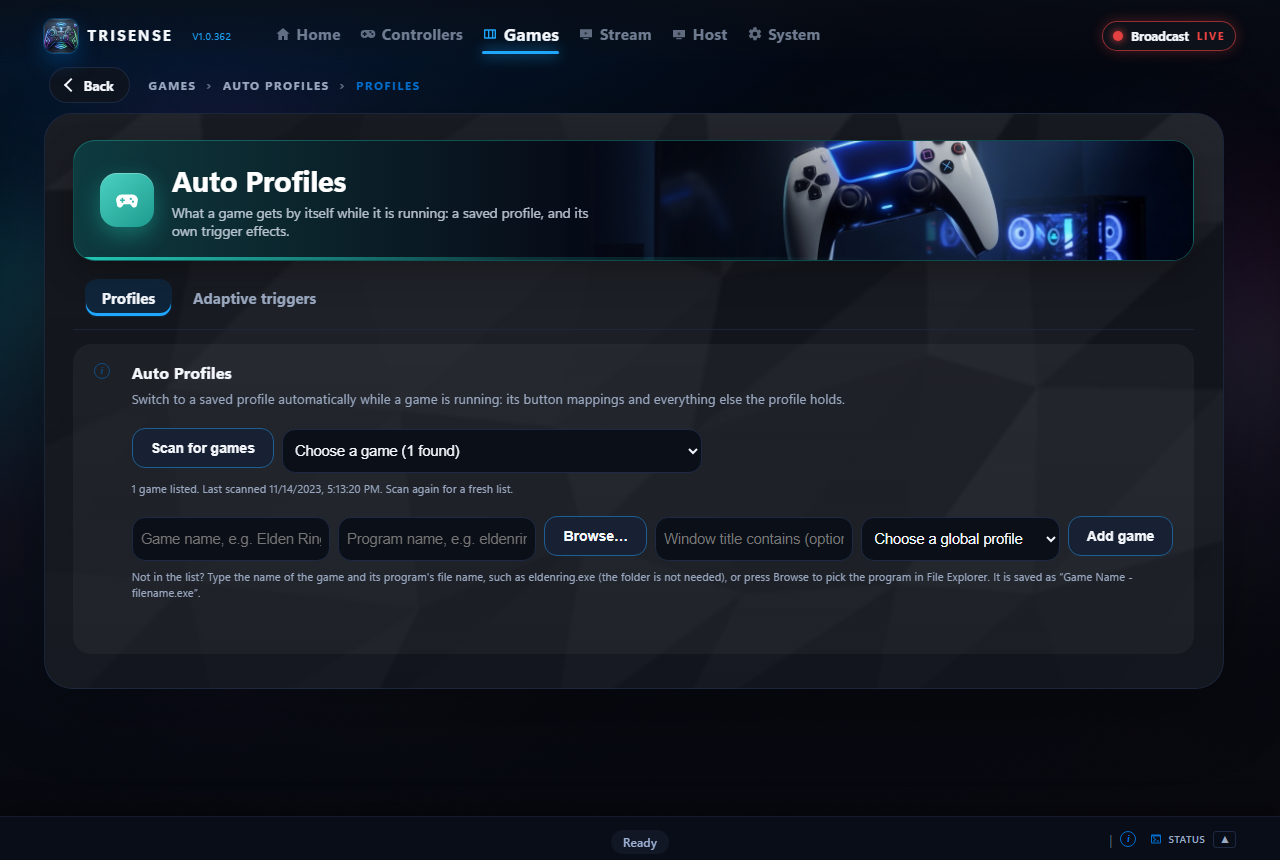
This lives under Games > Auto Profiles.
- Open Profiles > Games.
- Press Scan for games and pick the game, browse for it, or type its name and program.
- Optional: fill in Window title contains to tell apart games that share one program.
- Choose the global profile to use and press Add game.
Back up and share
- On Profiles > Global, under Back up and share, press Export to write every profile to one file.
- Press Import to add the profiles from a file. You are shown what it contains before anything is added.
Power
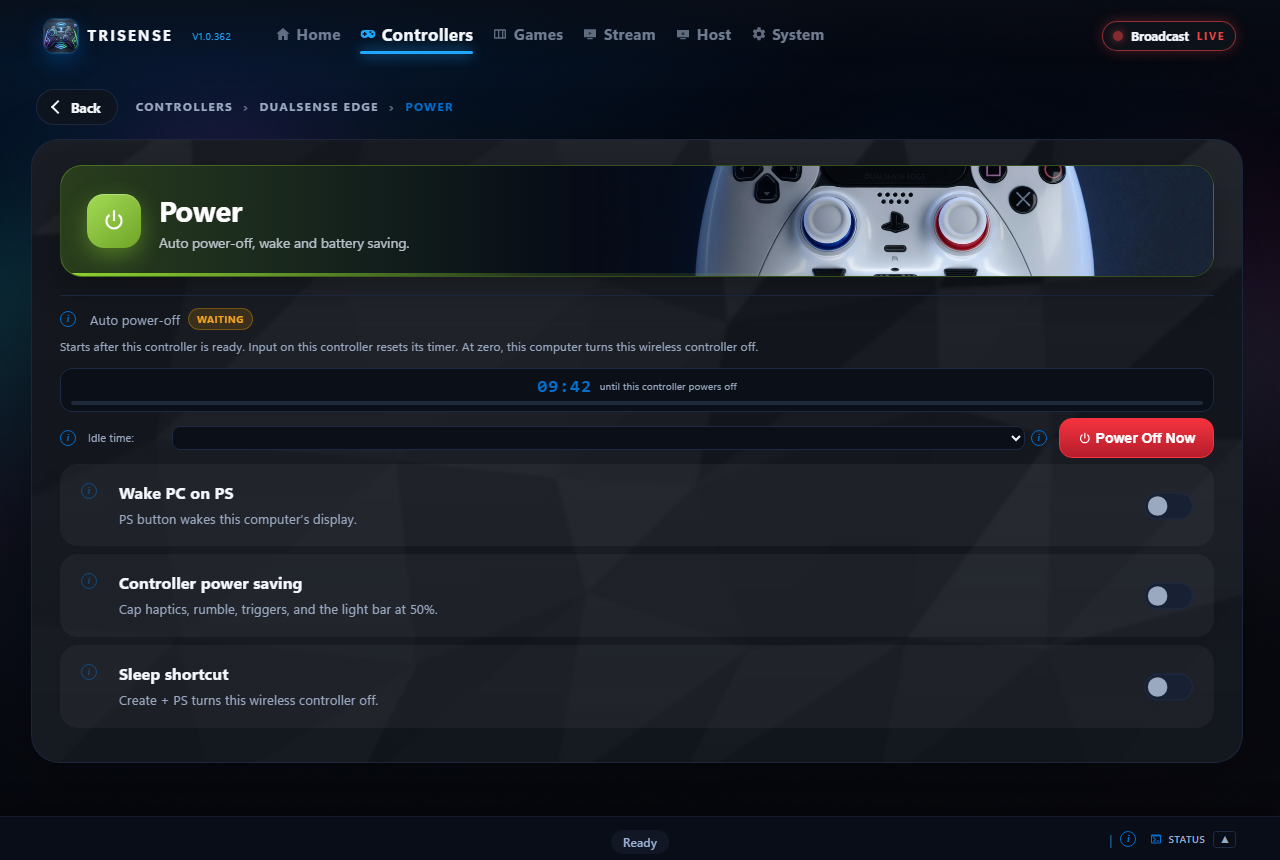
- Open Power. Auto power-off counts down while the controller is untouched; any input restarts it.
- Choose the Idle time. Power Off Now switches a wireless controller off straight away.
- Wake PC on PS wakes the display with the PS button.
- Controller power saving caps haptics, rumble, triggers and the light bar at 50%.
- Sleep shortcut lets Create + PS switch the controller off.
System settings
Open System at the top of the window. Each section has a header that says what is in it.
| Section | What is in it |
|---|---|
| Theme | Nine themes (Dark, Light, Midnight Purple, Crimson, Emerald, Sunset, Graphite, Sand and Mint), and a builder that starts from any theme for one of your own. The games overlay, the wheel and the on-screen keyboard follow what your theme is built on, dark or light. |
| Integrations | See Integrations, RivaTuner, Voice, Home Assistant and OpenRGB. |
| Sensors | How hot and how busy the PC is while you play, from HWiNFO: bars and graphs, with the highest and the average since TridentSense started. |
| Home Assistant | The dashboard of the devices brought in, by floor, room or kind. Shown when the integration and its dashboard are on. |
| Lighting | Every OpenRGB device. Shown when OpenRGB is on (see Lighting with OpenRGB). |
| Wheel | See The wheel. |
| Apps | See Launch and close programs. |
| Notifications | See Notifications. |
| Other | Interface size, Show welcome on launch, Switch Bluetooth controllers off when TridentSense closes, and Other controllers (experimental), which reads other gamepads through SDL. |
| OS | Start with Windows, start minimized, minimize to tray; the two drivers, with buttons to install or repair them; the controllers Windows has; Windows Firewall, with each port TridentSense uses and whether it is let through; and System info: Windows, processor, memory, graphics card and driver, screens, drives, network, and the Windows settings that bear on games. |
| Bluetooth | See Bluetooth. |
| Help | Getting about with a controller; Recover a Chair host for a PC you watch that is stuck; Remove all virtual devices for a controller shown twice or left behind; and a clean restart of Steam when it lists a controller that is not there. |
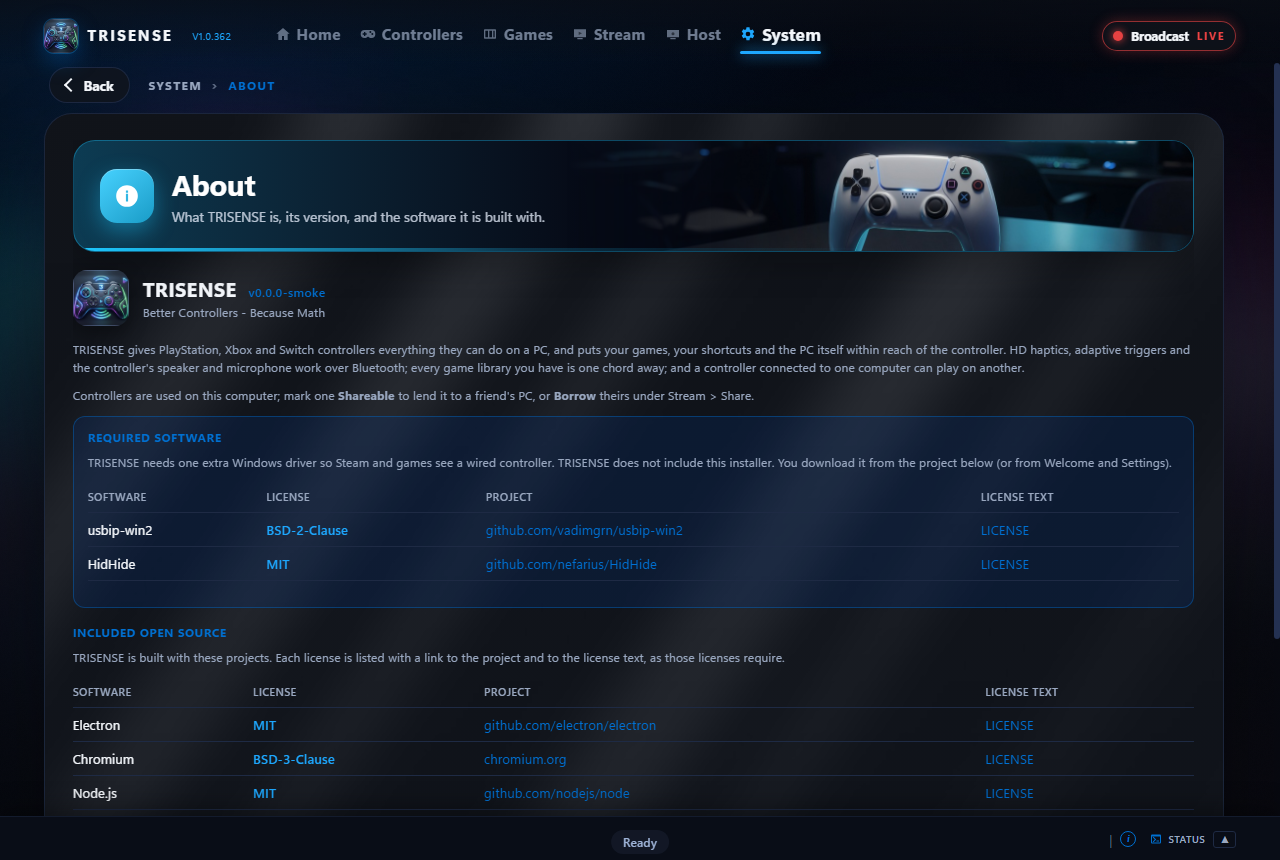
| About | The version, and the software TridentSense is built with. |
Interface size
Automatic goes by the size of the desktop each part is on: smaller on a small screen such as a handheld so that everything fits, larger on a big one at Windows' 100% so that it is not tiny. A screen Windows already scales up is left as it is. Or choose a percentage. It applies to the window, the games overlay, the wheel, notifications and the on-screen keyboard.
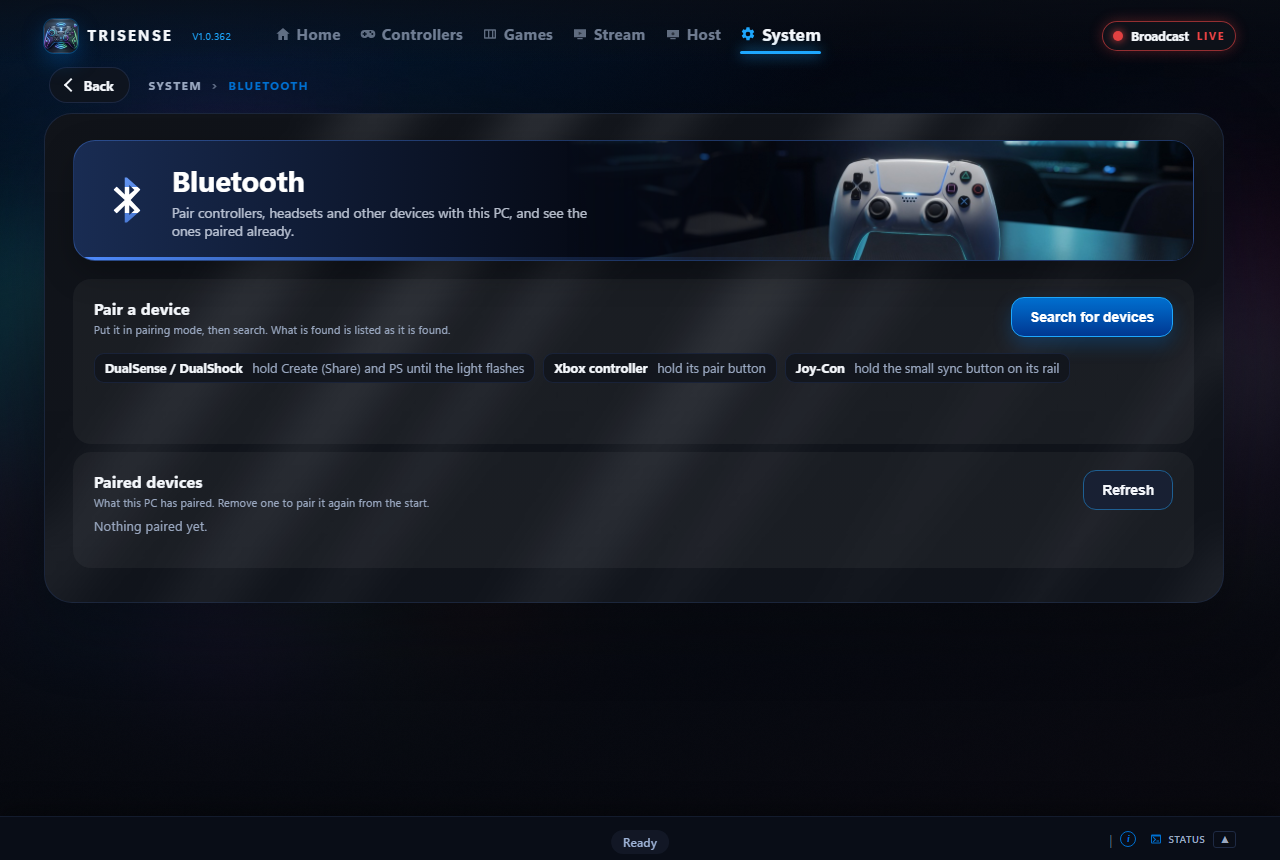
Bluetooth
- Open System > Bluetooth and put the controller in pairing mode. The steps for each kind are shown beside the button.
- Press Search for devices. What is found is listed as it is found; choose it to pair.
Below, the devices already paired, each with a button to remove it.
Integrations
Open System > Integrations. Each is off until you switch it on.
| Tab | What it does |
|---|---|
| Web | Launch web version of TridentSense also shows the window in a web browser on this PC, on a port you can change. |
| DSX | Accept DSX game mods listens for the trigger and light instructions that game mods written for DSX send. |
| Motion | Motion server for emulators provides gyro and accelerometer data to emulators that use the cemuhook protocol. |
| Moonlight | Lists the computers Moonlight is paired with and the games each offers. Switch a game on and it can be given a chord or a slot of the wheel, and appears in the library's Moonlight tab. |
| RivaTuner | See RivaTuner. |
| OBS Studio | OBS's commands (record, stream, scenes and the like) offered to chords and the wheel. |
| MSI Afterburner | Afterburner's five profiles offered to chords and the wheel: a quiet one for the desktop, a full one for games. |
| MIDI | The controller played as a MIDI controller: buttons as notes or controls, sticks and triggers as controls or pitch bend. |
| Discord | What you are doing with TridentSense on your Discord profile, a Join button for your Couch, and a message to a channel when you go live. |
| REAPER | REAPER's transport, markers, tracks and the metronome from chords and the wheel, through its OSC control surface. |
| Voice | See Voice commands. |
| Home Assistant | See Home Assistant. |
| OpenRGB | See Lighting with OpenRGB. |
| HWiNFO | Temperatures, fans and power read from HWiNFO: on the System > Sensors page, as a light bar temperature gauge, and a warning you can feel. |
Each one works with the program you have installed: TridentSense finds it, or offers a button to locate it.
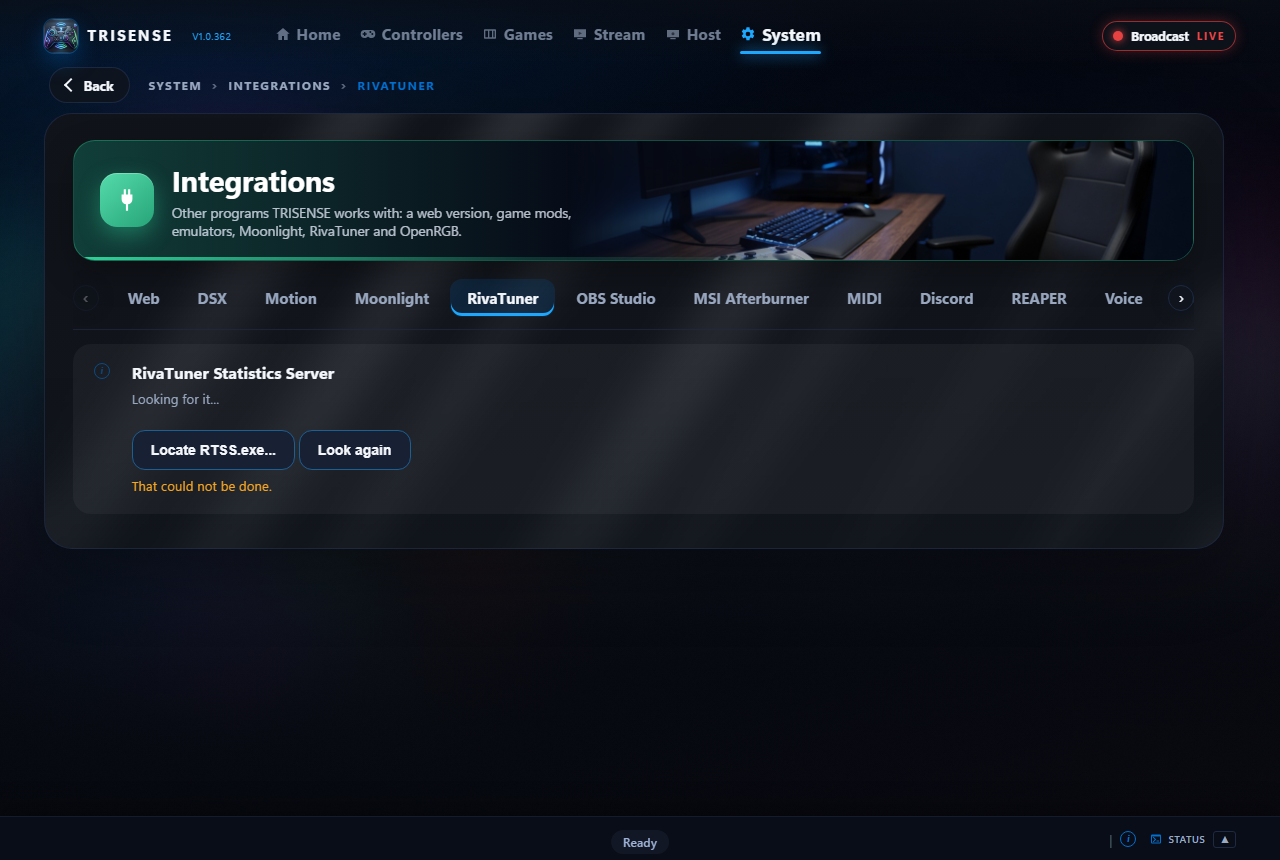
RivaTuner
RivaTuner Statistics Server (RTSS) draws the on-screen display many PC players use to watch their frame rate and hardware, and limits the frame rate. It comes with MSI Afterburner or by itself. TridentSense can drive it from the controller. It is optional.
Set it up
- Open System > Integrations > RivaTuner. If RTSS is installed it says Found on this PC; if not, press Locate RTSS.exe.
- Switch on Control RivaTuner from the controller. The switch is there only once RivaTuner is found.
- Press Install the TridentSense overlays, then Restart RivaTuner.
The overlays
| Overlay | Shows |
|---|---|
| Full | Frame rate and frame time, a frame time graph, the average and the 1% and 0.1% lows; for the graphics card and the processor: usage, temperature, power, clock and memory; every core as a bar; fan, refresh rate, the time and how long you have played |
| Compact | One strip: frame rate, frame time graph, usage and temperature, memory |
| FPS | The frame rate and the frame time graph, and nothing else |
| Benchmark | Frame rate with its average, lowest, highest, 1% and 0.1% lows, the frame time and frame rate as graphs, and how long it has been recording |
Your own overlays
Under Your overlays, build overlays of your own: choose what each shows (the frame rate, graphs, the lows, the graphics card's and the processor's figures, every core, the time, words of your own), in what order, in one column, two or a strip, in your own colours, font and size. Each is written into RivaTuner beside the TridentSense ones, and a chord, the wheel or your voice can show it.
While a PC watches this one
Cap games at the stream's rate (Host > Settings) sets RivaTuner's frame limit to the rate being streamed, so games make no frames the stream would throw away, and puts your own limit back afterwards.
Commands for chords and the wheel
| Command | Does |
|---|---|
| Overlay on or off | Shows or hides the overlay in the running game, at once |
| Limit to 30, 60, 90, 120 or 144 FPS; no frame limit | Sets RivaTuner's frame limit, at once |
| Show the Full, Compact, FPS or Benchmark overlay | Changes which overlay is shown. RivaTuner is restarted to change, which takes a few seconds |
| Record frame rates | Starts or stops RivaTuner keeping the average and the lows. The overlays show them while it records, and say so where they would be until then |
| Start it | Starts RivaTuner |
Each has a Try button on the page.
Joining another PC
Watch and play a game running on another PC on your home network. Both need TridentSense, and the other PC must have Broadcast on (see Hosting).
- Open Stream and choose Chair (a stream to you alone, made to your settings) or Couch (one game shown to several people).
- Under Broadcasting, the PCs that can be joined are listed: a Chair as Free or In use, a Couch with how many are watching. A sleeping PC you have joined before can be woken from here.
- Choose one. The first time, type its PIN.
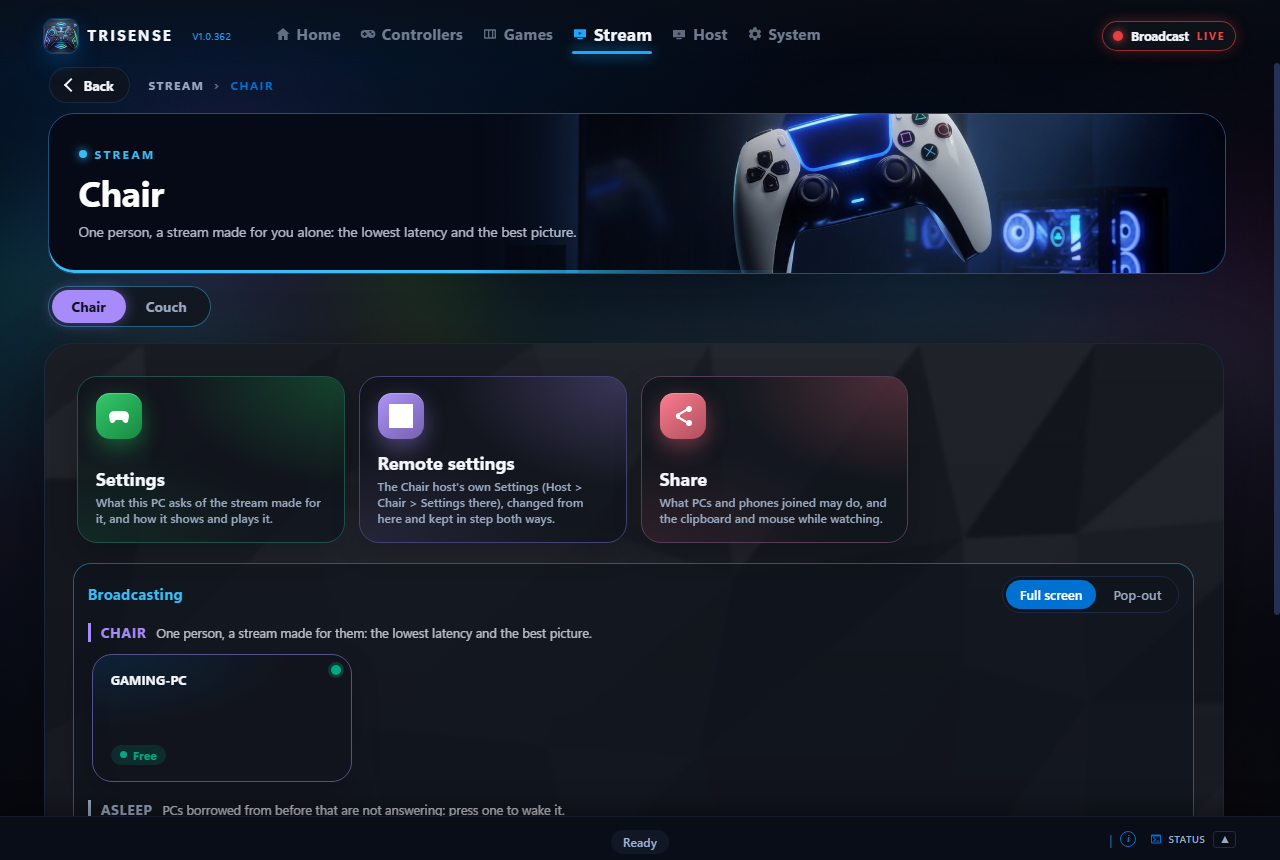
Settings
Stream > Chair > Settings (and Couch's own) decide what you ask for and how it is shown:
- Picture asked for: size, frame rate (up to 4K at 120), bitrate, codec (H.264, HEVC, AV1 where the other PC's graphics card has it, or PyroWave over a cable) and channels. A Couch never uses PyroWave.
- Chroma: 4:2:0, or 4:4:4 for sharp coloured text where both PCs can.
- Frame pacing: lowest latency, balanced or smoothest; VRR mode for a G-Sync or FreeSync display.
- Native window: full screen with every key passed to the other PC, or a floating pop-out window. While watching: Ctrl+Alt+Shift+F switches between them, S shows the network figures, M locks the pointer to the picture.
- Video decoder: automatic, the graphics card only, or the processor only. Scale asked for sets text size on the virtual monitor made for you.
- Sound: stereo or surround, whether the other PC keeps playing too, and quiet while the viewer is in the background.
- Join video: off takes the seat without opening the picture, for lending your controllers to a game on another screen.
Remote settings changes the other PC's Chair settings from here.
Share
Stream > Chair > Share (and Couch's) holds voice chat with the PCs you are linked with, the shared clipboard, and the mouse: buttons swapped or scrolling reversed on the other PC.
Start a game there
With Chairs on, the games installed on your other PCs are in the library. Choose one and TridentSense joins that PC as a Chair: the game is started there, and this PC shows the game's own artwork until it is running full screen, then opens the picture. If a game is already being played there, you are asked whether to close it and start yours, or to join it as it is.
Hosting: letting others join
- Open Host and choose how this PC is joined: Chair (one person, with their own settings) or Couch (several people on one game, each sent a stream their device can play).
- Set a PIN under Host > Sessions. Nobody joins without it.
- Switch on Broadcast, at the top right of the window. It shows LIVE while this PC can be joined.
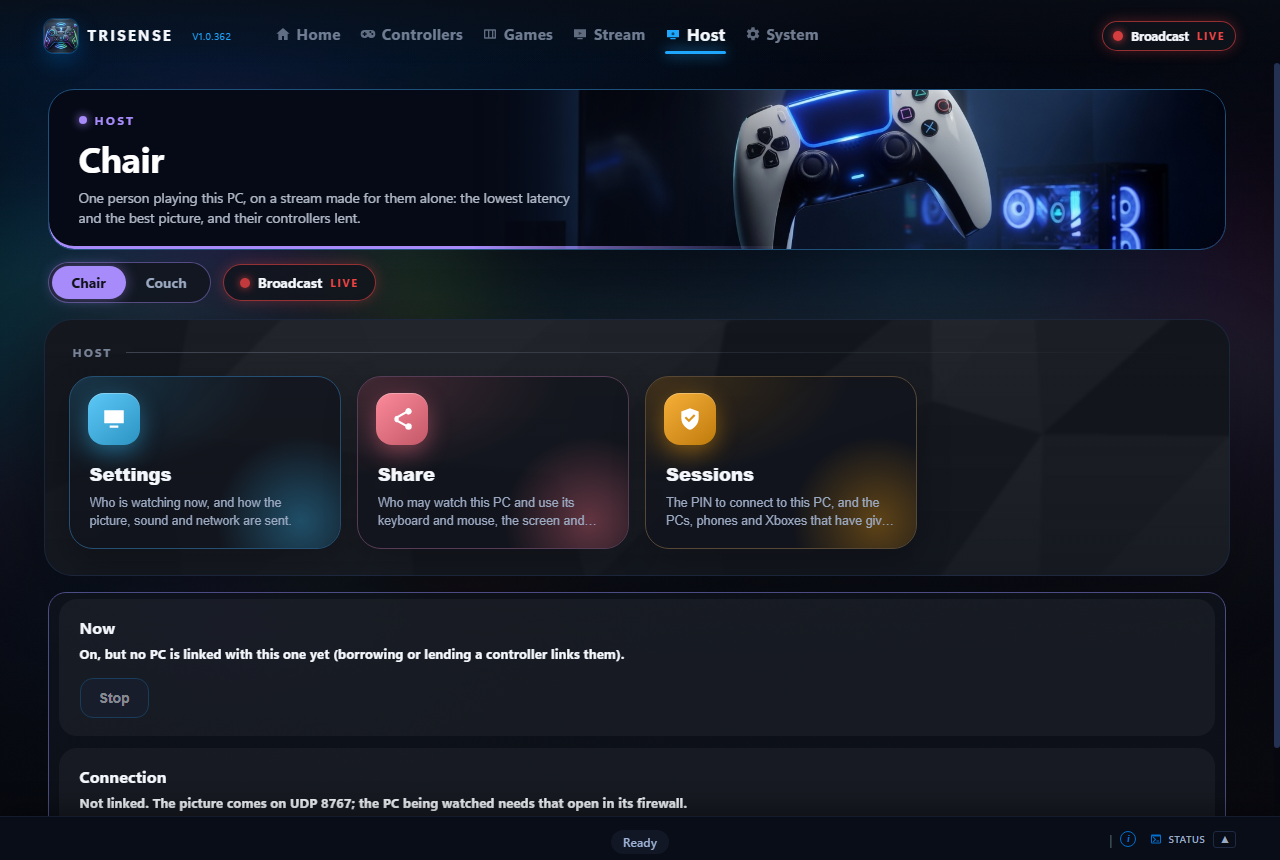
| Page | What is on it |
|---|---|
| Settings | Virtual display: a monitor made for each viewer at their resolution and refresh rate, beside your screens, as the main one or the only one, in HDR10 when they ask. Encoder: fastest, balanced or quality, keyframes only when needed or every 4 seconds; NVIDIA tuning (two-pass, a larger rate buffer, adaptive quantization, minimum QP); NVIDIA driver options while watched (realtime GPU priority, highest clocks, OpenGL and Vulkan games presented through DXGI). Capture: variable (each frame as the screen changes) or constant. Intra-refresh heals a lost frame without a burst. Cap games at the stream's rate with RivaTuner. Sound: stereo or up to 7.1. Network: error correction, adaptive bitrate, packet pacing, encryption on your network and over the internet, ping timeout and batch size. TridentSense Service sends Windows prompts and the sign-in screen too. A Couch's page has the resolution everyone is made from and your measured upload, which caps each encode at a tenth of it. |
| Share | Who may watch and use the keyboard and mouse, which screen and sound are sent, the shared clipboard, voice chat, and whether phones may lend controllers or control this PC. |
| Sessions | The PIN, and every PC, phone and Xbox that has given it, with when it was first and last let in; Revoke makes one type the PIN again. |
Lending a controller
Let another PC on your network use a controller connected to this one, without streaming anything.
- On this PC, set a PIN under Host > Sessions.
- Open the controller and switch on Shareable at the top of its page.
- On the other PC, join this one from Stream and type the PIN once. Shareable controllers go to it straight away.
The phone and TV apps
| App | What it does |
|---|---|
| Android phone and tablet | Stream: take a seat at any PC, as on a PC, with the controller paired to the phone lent to it, or an on-screen controller. Remote Control: every setting of a PC, from the sofa. |
| Android TV | Stream only, laid out for the television and its remote. Pair a controller to the TV and it is lent to the PC you watch. |
| Xbox | On its way. The phone app is coming to iPhone and iPad after it. |
A phone or TV is let in with the PC's PIN like any other. Host > Share decides whether phones may lend controllers or control the PC.
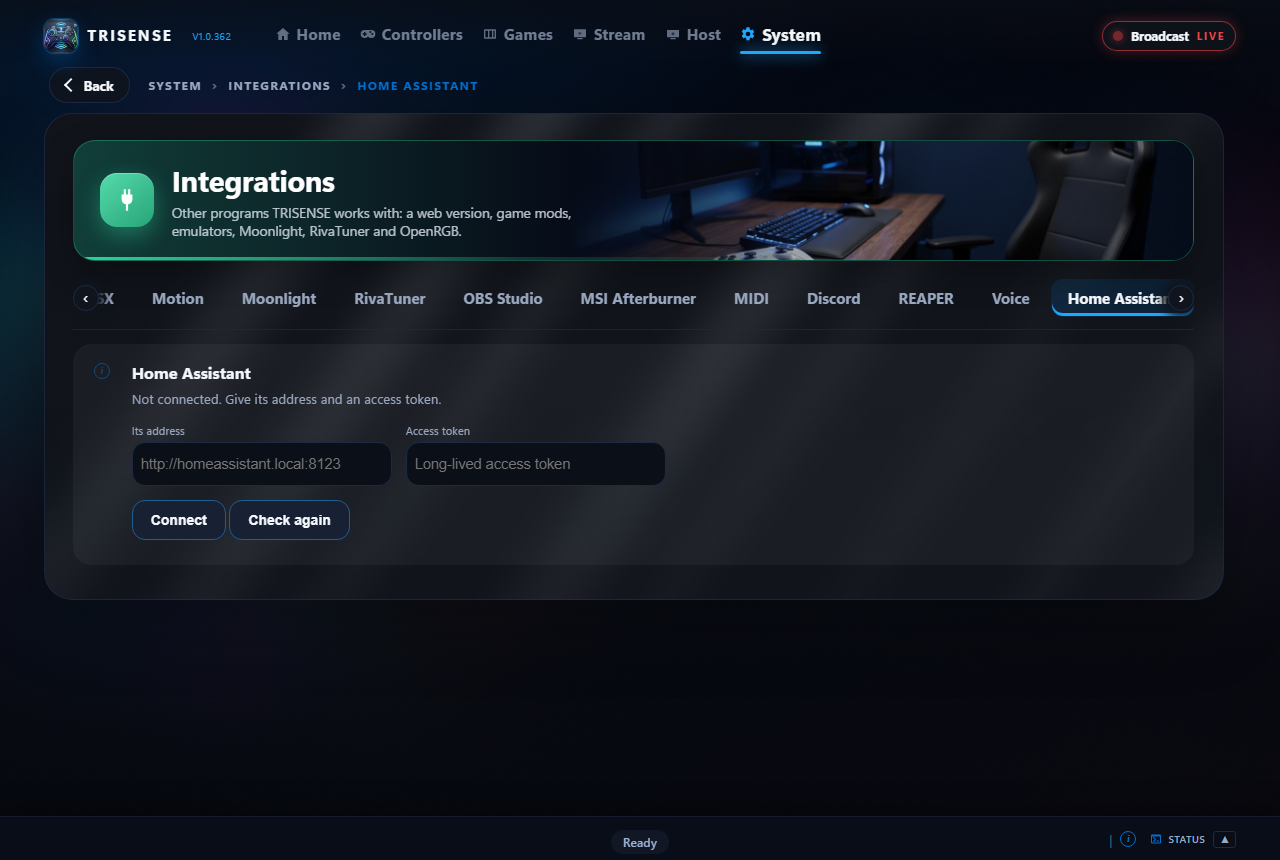
Home Assistant
- In Home Assistant, make a long-lived access token (your profile, Security).
- Open System > Integrations > Home Assistant, type its address and the token, and press Connect.
- Bring in the devices you want: lights, switches, fans, covers, scenes, scripts, thermostats and sensors.
Voice commands
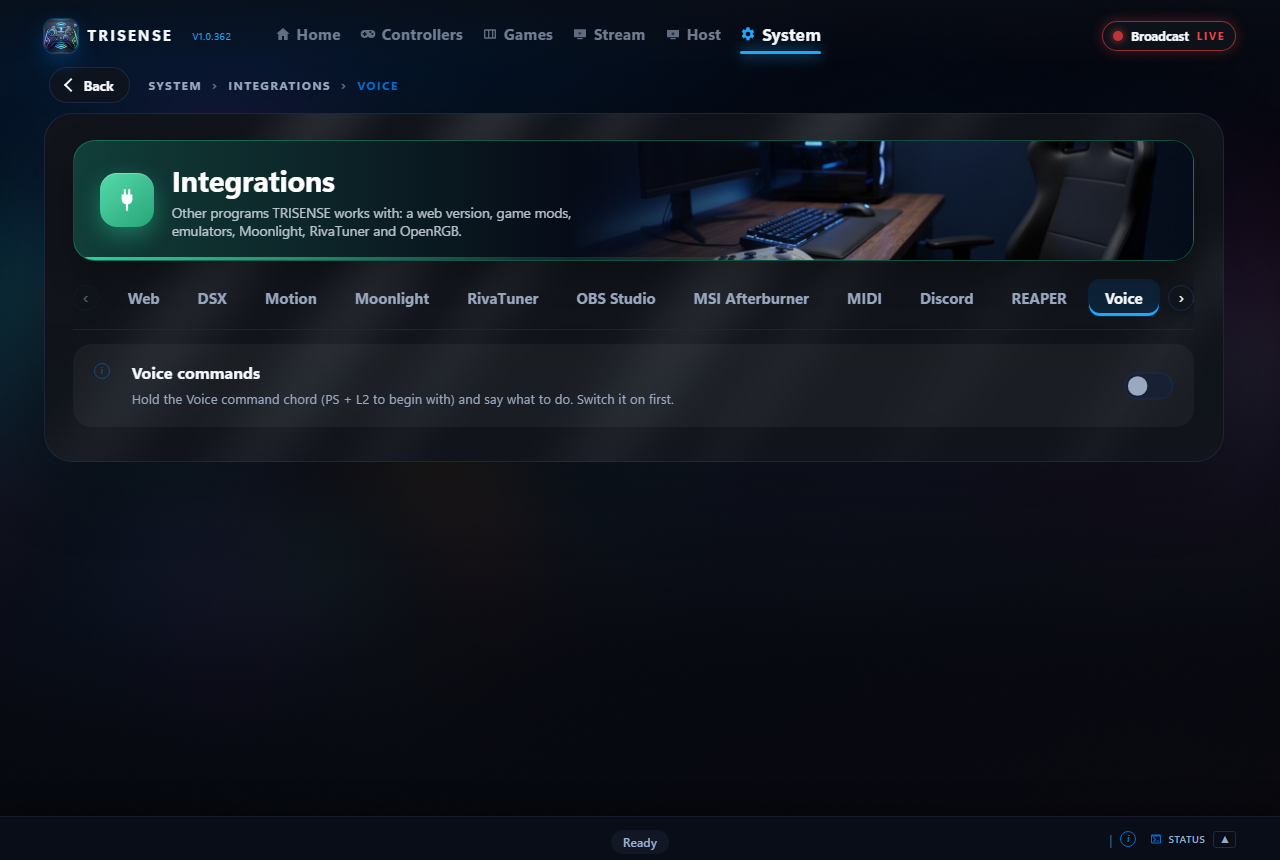
- Open System > Integrations > Voice and switch it on. Choose where it listens: the controller's microphone, or the PC's.
- Hold PS + L2, say a command, and let go.
Commands are what TridentSense can already do, by name: "play" and a game you played lately, any shortcut or wheel option, a program to launch, and your Home Assistant devices and rooms ("living room lights off", "heating to 21").
Lighting with OpenRGB
- Install OpenRGB and switch on its SDK server.
- Open System > Integrations > OpenRGB, switch it on and connect.
- A Lighting page appears under System: every device together, each one on its own, OpenRGB's profiles, and a temperature gauge.
Colours, effects, brightness and profiles can be put on chords and the wheel, and said as voice commands. Controllers are left out of "every device", so their light bars stay yours.

The status view and log files
Click the status bar at the bottom of the window to open the log. Every line is filed under an area.
| Area | What is in it |
|---|---|
| App | Start-up, settings, the window |
| Sound | Speaker, headset, microphone, haptics from sound |
| Controller | Connecting, battery, lights, rumble, triggers, power-off |
| USB/IP | The virtual controllers games see |
| Network | Finding other PCs, lending and borrowing controllers, streaming |
| Games overlay | Opening and closing it, what its library is doing, and each store |
| Shortcuts | Chords pressed, the on-screen keyboard, stick as a mouse, the shortcut sheet, closing a game |
- All areas list: show one area only.
- Detailed: adds the finer steps. Switch it on before reproducing a problem.
- Copy: copies what is shown, for pasting into a support request.
logs folder: one file for each area, all.log with everything in order, and errors.log with warnings and errors only. API keys, store sign-ins and account numbers are never written.Troubleshooting
| What you see | What to do |
|---|---|
| The controller shows twice in Steam or a game. | Open System > OS and check the controller hiding driver is installed. If you use the stable Steam client and the extra one appears only after plugging a controller in while Steam is running, restart Steam. |
| No tab appears for a controller. | Check Windows itself sees it (Bluetooth settings, or System > OS > Controllers on this PC). Unplug and reconnect it. |
| No haptics in a game. | Leave Appear as on DualSense, check Haptics > HD haptics is on, and check the game's own controller setting is set to DualSense or PlayStation. |
| No sound from the controller speaker. | Check Audio > Speaker is on and Volume is up. With a headset plugged in, sound goes to the headset instead. |
| Audio Haptics does nothing. | Read the line under its switch: it says whether sound is reaching the controller. It needs Bluetooth. |
| The other PC is not listed under Stream. | Check both PCs are on the same network and the other PC has Broadcast on. Windows Firewall must let TridentSense through on both (System > OS > Windows Firewall). |
| Joining a PC stops at the PIN. | Type the PIN shown under that PC's Host > Sessions. A PIN that was changed there is asked for again. |
| A store's games are missing from the library. | Switch the store on under Games > Stores. If its launcher was not found, choose its folder there. |
| A game has the wrong cover, or none. | Open Games > Stores > SteamGridDB and press Fix on it. |
| A game starts behind another window. | Switch on Bring to Front under Games > Settings. |
| A RivaTuner command says the change was not kept. | Check TridentSense Service is running (System > OS); it writes RivaTuner's settings. Signing out and in again after installing TridentSense lets it serve you. |
| The RivaTuner overlay does not appear or does not change. | Press Install the TridentSense overlays, then Restart RivaTuner, on its page. |
| Everything is too large or too small. | Set System > Other > Interface size. |
| An Xbox headset is not listed. | It needs a USB cable or the Xbox Wireless Adapter, and the headset plugged into the controller. |
The status bar at the bottom of the window opens the activity log, which says what TridentSense is doing and why.